TABLE OF CONTENTS
- Overview
- Things to do before grading students in a marks book
- Set up subjects to grade students against learning outcomes
Overview
Teachers use a marks book to grade student assessments and subject results, so they and the school can track student progress against learning outcomes.
Marks book allows you to centralise all grading data in one place to streamline your marking and academic reporting processes.
Before teachers can add grades to marks book, there are a few areas that need to be set up to ensure the relevant academic period, subjects, class and assessment data is pulled together to form the marks book.
On this page:
This guide shows you how to set up your grading data in Zunia to simplify curriculum management and academic reporting by:
- Complete things to do before grading students in marks book
- Set up subjects to grade students against learning outcomes
Permissions: To access and set up grading and assessment features, your Zunia system administrator will need to assign you permissions for both Subjects and Marks book.
Things to do before grading students in a marks book
To make the most of marks book to streamline your grading and academic reporting, check these settings have been configured.
- Academic year and periods: allows you to define the year, semesters and terms that reporting will be prepared for. Check our guide to Create your academic year.
- Subjects and assessments: to pull in relevant grading data, learn how to Set up subjects and assessments to grade students against learning outcomes.
- Timetable: to be able to create a class, assign it to a timetable and add students. Get an Overview of timetables.
- Create grading scales for marks book: We have a number grading scale and you have the option to create other types of grading scales. Note: marks book grading scales are not the same as grading scales for academic reports.
Once you have all these areas set up, you’re ready to create assessments and learning outcomes for subject, so they’ll show up in a marks book.
Set up subjects to grade students against learning outcomes
To set up a marks book to allow a syllabus subject or assessment to be graded, you need to complete the following tasks:
- Add a subject and assign curriculum syllabus (if available), to allow curriculum data to be visible in marks book. A class must exist before this step can be completed.
- Create assessments/groups in a subject to test and measure learning criteria and/or outcomes.
- Add learning outcomes and weighting to assessments.
- Add grades and comments to a marks book.
You've now set up a Marks book and teachers can now open a marks book and add grades and comments.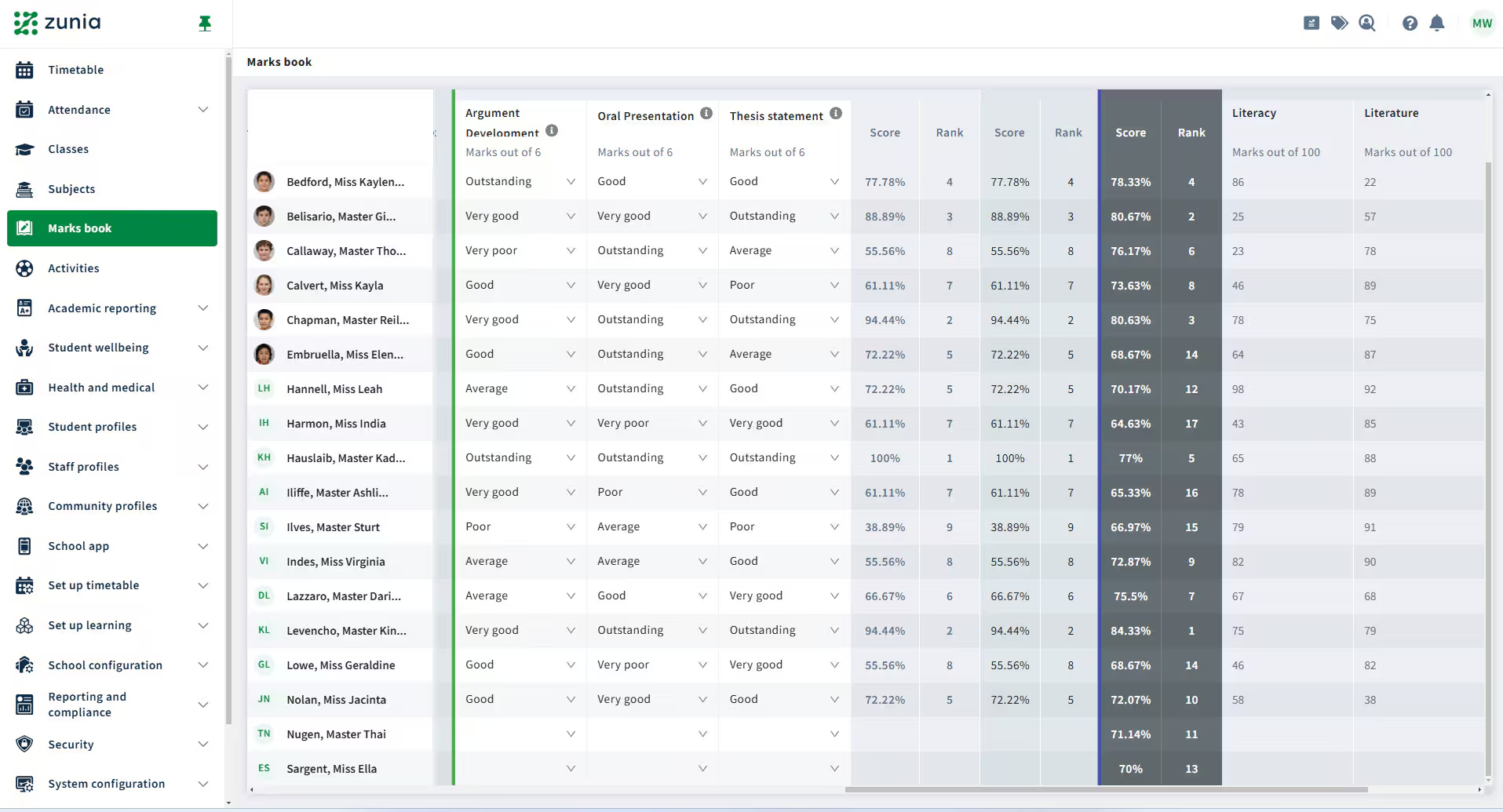 Pictured: Preview of subject assessment and syllabus subject scores automatically calculating total scores.
Notes:
- When viewing a marks book, you’ll see any subjects or students assigned to the class within that year level.
- Marks books autosave as teachers add grades and comments.
- Your Zunia system administrator will need to assign you permissions for both Subjects and Marks book so you can set up and use Marks book.
Was this article helpful?
That’s Great!
Thank you for your feedback
Sorry! We couldn't be helpful
Thank you for your feedback
Feedback sent
We appreciate your effort and will try to fix the article