TABLE OF CONTENTS
- Introduction
- Setting name formats
- Editing to override a single user profile
- Setting Display options for Labels
- Default values
Introduction
The school administrator defines the formats and labels for staff, student and community profiles in Zunia.
When Zunia is set up for your school, these settings are defined and don’t often need to be changed.
Setting name formats
The name formats you set display in all mail communications to users and reports generated from Zunia for your school.
When configured, all names display in the same format.
Go to School community profiles > Community configuration to define name formats:
- Select Name formats and enter information. After each selection, select Save > Generate > Proceed and you will receive a notification when complete:
| Name | Description |
1 | Internal name format | Choose the internal name format for the record. For example, a name format for a class list. |
2 | External name format | Choose the external name format for the record. This is set mainly for use in use in documents for external audiences, for example government reporting. |
3 | Legal full name format | Choose the legal full name format for the record. |
4 | Choose the Mail name format, Joiner and Initial format for envelopes and postal requirements. | |
5 | Salutation | Choose the Salutation format, Joiner, and Initial format. A more formal preferred format for greetings in emails and letters is, for example, Dear Mr and Mrs Jones. |
6 | Preferred | Choose the Salutation preferred name format. Choose the Uses and Joiner formats that you prefer for the records. For example, the preferred names of the individuals like Dear John and Mary. |
7 | Bias | Choose the Name format bias format. Bias controls how joint mail names and salutations display. Example: Consider a couple John and Mary Jones. Using Actual name format bias helps when you search for a community member. The community member whose record you are looking at will come first. Example, on John’s record, you can store salutation as ‘Mr and Mrs Jones’ while on Mary’s record you can store 'Mrs and Mr Jones'.
If you set the bias as Primary, both community records will have the same salutation. One person in the couple is set as the primary person. That person will come first in the generated names. Example, if John is set as primary, both records will store as 'Mr and Mrs Jones'. If Mary is set as primary, both records will store as 'Mrs and Mr Jones'. To change the primary, go to Community > Relations > Spouse area. |
8 | Family | Choose the Family name format. |
Editing to override a single user profile
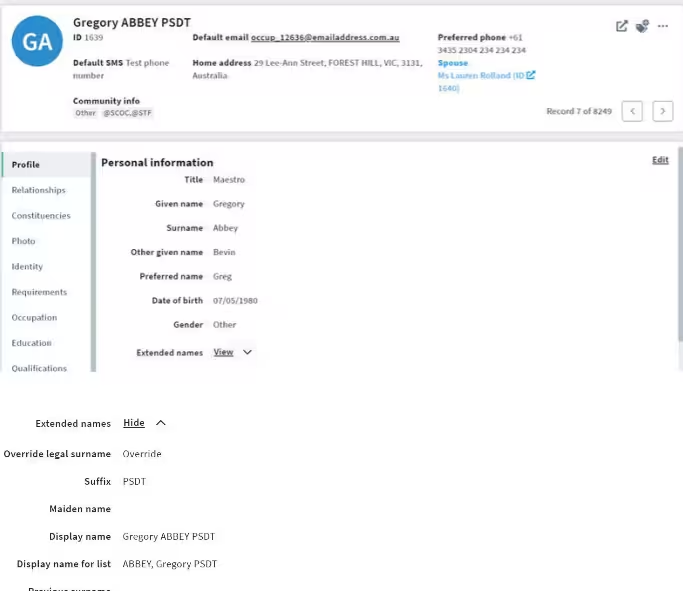
You can override a user’s personal information record when you’re in their profile:
Select View next to Extended names to see all the names for the person:
Edit that section and override any details of display names that you had earlier set for this user.
You can either override by choosing a different format for some fields, or you can specifically type in an override value. For this, select Override and enter the new value.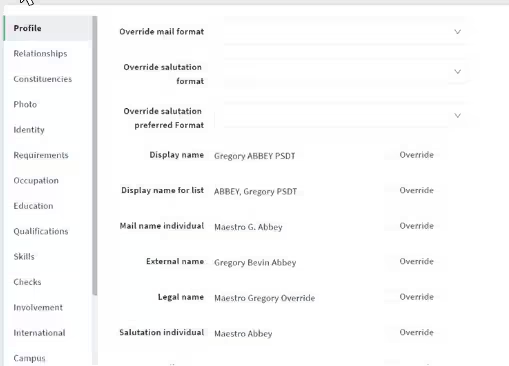 Note that this override method does not update the stored community member name if their names change or if their spouse's name is added or removed. So, use this method only when there is no other alternative.
 But if you haven’t added an override value, you can update the name components/title/spouse of a community member and it will update the generated names.
Changing the format to use for a specific community member is useful in specific scenarios. Example, Australian schools normally use the traditional western Mr & Mrs formats, but this may need a name format override being mindful of some of their Asian parents who follow a different name style.
Setting Display options for Labels
The display names that you set here defines the way all user information will appear in Zunia for your school.
Once configured, all user’s labels and records will show up in the same format
Go to School community profiles > Community configuration to define the label display options for users.
Select Display options and enter information. After each selection, select Save > Generate > Proceed and you will receive a notification when complete:
| Name | Description |
1 | Program display name | Define the format of name that displays at the top of a record for every user. |
2 | Program list name | Define the format of list name that appears below the display name for every user. |
3 | Community display options | Set the labels or tags for each community member. When you define this, it helps you drill-down further based on the labels you set. |
4 | Staff display options | Define the display options for the staff. |
5 | Student display options | Define the display options for the students. |
6 | Future student display options | Define the display options for the future students. |
7 | Past student display options | Define the display options for the past students. |
Default values
The default values are pre-set in Zunia for your use, for the following categories which you can edit and generate further. After each selection, select Save > Generate > Proceed and you will receive a notification when complete.
Was this article helpful?
That’s Great!
Thank you for your feedback
Sorry! We couldn't be helpful
Thank you for your feedback
Feedback sent
We appreciate your effort and will try to fix the article