TABLE OF CONTENTS
Introduction
The student wellbeing categories you create are used to categorise student wellbeing records.
These records let you track, share, and report on events or behaviours that relate to student wellbeing.
Some student wellbeing categories have already been set up for you including Awards, Communication and Uniform issues. You can edit these categories and add new categories to suit your school's wellbeing program.
Create a student wellbeing category
To create a new wellbeing category go to Student wellbeing > Create or edit wellbeing categories. Then select Add category.
You can now fill in the details of the wellbeing category.
Description
Give the wellbeing category a Category name. A unique Key will display based on the category name. This key is used to create wellbeing reports so it's important that you don't change it.
Add a Description.
Choose whether the behaviour or connotation is Positive, Negative or Neutral. This displays on the wellbeing record as either a green , red
, red or blue
 icon.
icon.
Prioritisation
This is where you decide the order that the categories appear in when staff are creating a wellbeing record. If you want the categories to appear in alphabetical order (example below), then keep the priority of each category you create as 100.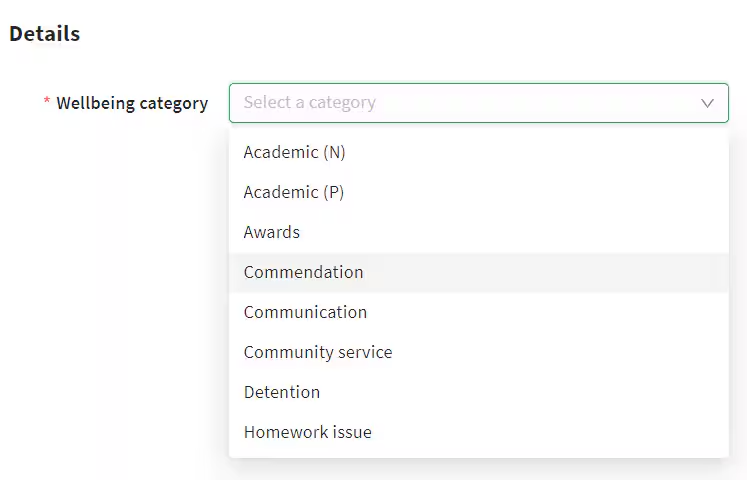
If there is a category that staff use regularly, you can make it appear at the top of the list by giving it a Priority of 1.
Sub-categories
Add any sub-categories you need by entering the Sub-category name and selecting Add.
For example, the category could be Awards, and the sub-categories could be Principal's award and Community service award.
Select Required to make the sub-category a mandatory field.
Points system
You can use the points system to track merit and demerit points. If you want to use the points system, turn the option on, and then enter the number of points you want to apply to this wellbeing category.
If you want the points to be editable when a wellbeing record is being created, select Allow points to be modified when creating note.
Date and time
There are 3 Date types to choose from when setting up the wellbeing category.
Date (single day) is used for categories where you generally only need to record a single date. For example, the category School uniform breach might use this date type.
If the wellbeing event is likely to happen across a few days, such as a trip or event then select the Date range (multi day) option.
If you need a record of the exact time the wellbeing event took place, then select Enable time recording. Time fields will now display when entering student wellbeing records.
Collaboration
If you want staff to be able to create wellbeing records for this category on behalf of other team members, then select Allow entries to be created "on behalf" of another staff member.
Follow up
There are 3 follow up options available.
Allow entries to be flagged for follow up: wellbeing records made using this category can be flagged for follow up.
Allow entries to be marked as followed up: wellbeing records made using this category can be marked as followed up.
Allow entries to indicate student presence: wellbeing records made using this category can show if the student was present.
You can choose whether these options are automatically selected when a record is created by using the default status of Checked or Unchecked.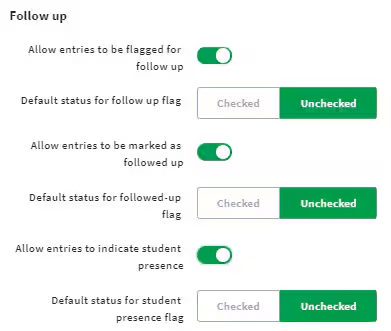
Select Save when you're done.
The wellbeing category is active and available when creating wellbeing records.
Was this article helpful?
That’s Great!
Thank you for your feedback
Sorry! We couldn't be helpful
Thank you for your feedback
Feedback sent
We appreciate your effort and will try to fix the article