TABLE OF CONTENTS
- Introduction
- End of year finance checks
- Start of year finance checks
- Create debtors accounts for new students (optional)
- Create new payment plans (optional)
- Reconciliation reports to balance cash accounts (optional)
- Outstanding balances carried forward (optional)
Introduction
We know reconciling and balancing finance records at the end of the year is a busy time for School Administrators and Managers.
This guide is designed to help you prepare your school’s finance records to rollover any outstanding payments from one year into the next.
Follow the steps below at the end and start of year to check you’ve completed the finance rollover process. Anything not listed as a step is optional and you can do as and when needed, anytime of the year.
End of year finance checks
Once you’ve processed your last payment, we recommend you clear any outstanding balances that you don’t want to carry into the next year.
Clear or write-off unresolved debtor balances:
- Step 1: Add a GL code for write-offs
- Step 2: Add a write-off receipt to an account
- Step 3: Add and approve receipt allocation for write-off
Start of year finance checks
When a new year begins, here’s how you can carry forward any balances remaining.
- Step 1: Set up the new general ledger year
- Step 2: Transfer GL codes
- Step 3: Apply tax on income and expense codes
- Step 4: Update debtor control codes
- Step 5: Add fee schedules
- Create debtor accounts for new students (optional)
- Create new payment plans (optional)
- Reconciliation report to balance cash accounts (optional)
- Outstanding balances carried forward (optional)
End of year finance checks
Clear or write-off unresolved debtor balances
If your school decides to write-off an outstanding balance that can’t be paid, you can clear the amount from the debtors’ account.
Step 1: Add a GL code for write-offs
If a general ledger code (GL code) for write-offs hasn’t been set up already, you’ll need to add one.
Select your Finance entity, then go to General ledger settings > General ledger codes:
- Under GL codes, select Add.
- Then select which Account and Cost centre to assign the GL code to.
Step 2: Add a write-off receipt to an account
Go to Cash receipts entry:
- Select Add batch to create a new receipt batch and Save.
- Select the batch to open it up – under Receipts, Add a new receipt.
- Enter a write-off Receipt amount. For example, if a debtor has not paid $1,000, create a new charge for -$1,000 to allocate as a write-off in step 3.
- Complete other receipt fields, then Save.
Step 3: Add and approve receipt allocation for write-off
- Open the receipt and select Add > General Ledger to create a receipt allocation.
- Select the GL code created for write-offs earlier and add a Transaction description to capture the reasoning, like 'unpaid debt' or ‘financial hardship’ if required.
- Save to close the allocation.
- Select Approve to save the receipt change.
You’ve added a negative debtor charge to write off an unresolved balance.
Start of year finance checks
Step 1: Set up the new general ledger year
To get started, create a new general ledger (GL) year so that active GL codes can be copied into the new year.
Step 2: Transfer GL codes
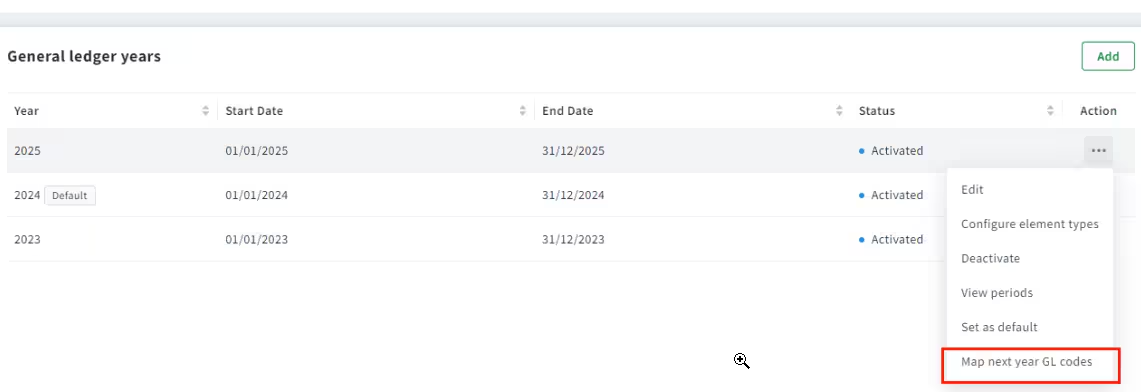
Go to Finance settings > General ledger settings > General ledger years.
- Find the GL year you want to transfer from and select the three dots under Action, then select Map next year GL codes.
Step 3: Apply tax on income and expense codes
Go to Finance settings > General Ledger settings > General Ledger control:
- Under Year, find the General ledger year and select Edit (under Action).
- Apply the GL codes that have been set up for taxable income and expenses, then Save.
For more information, see set up the general ledger years.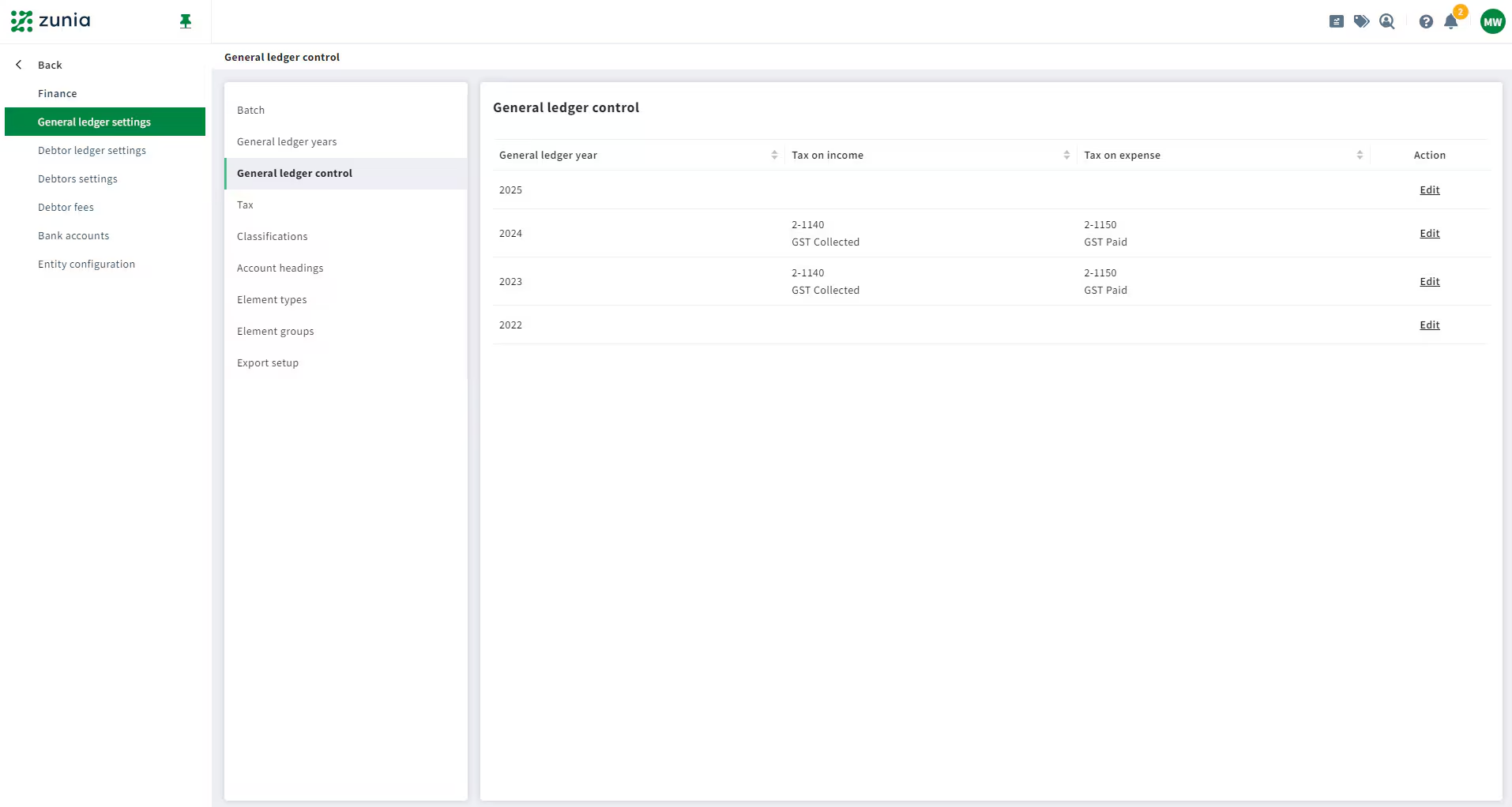
Step 4: Update debtor control codes
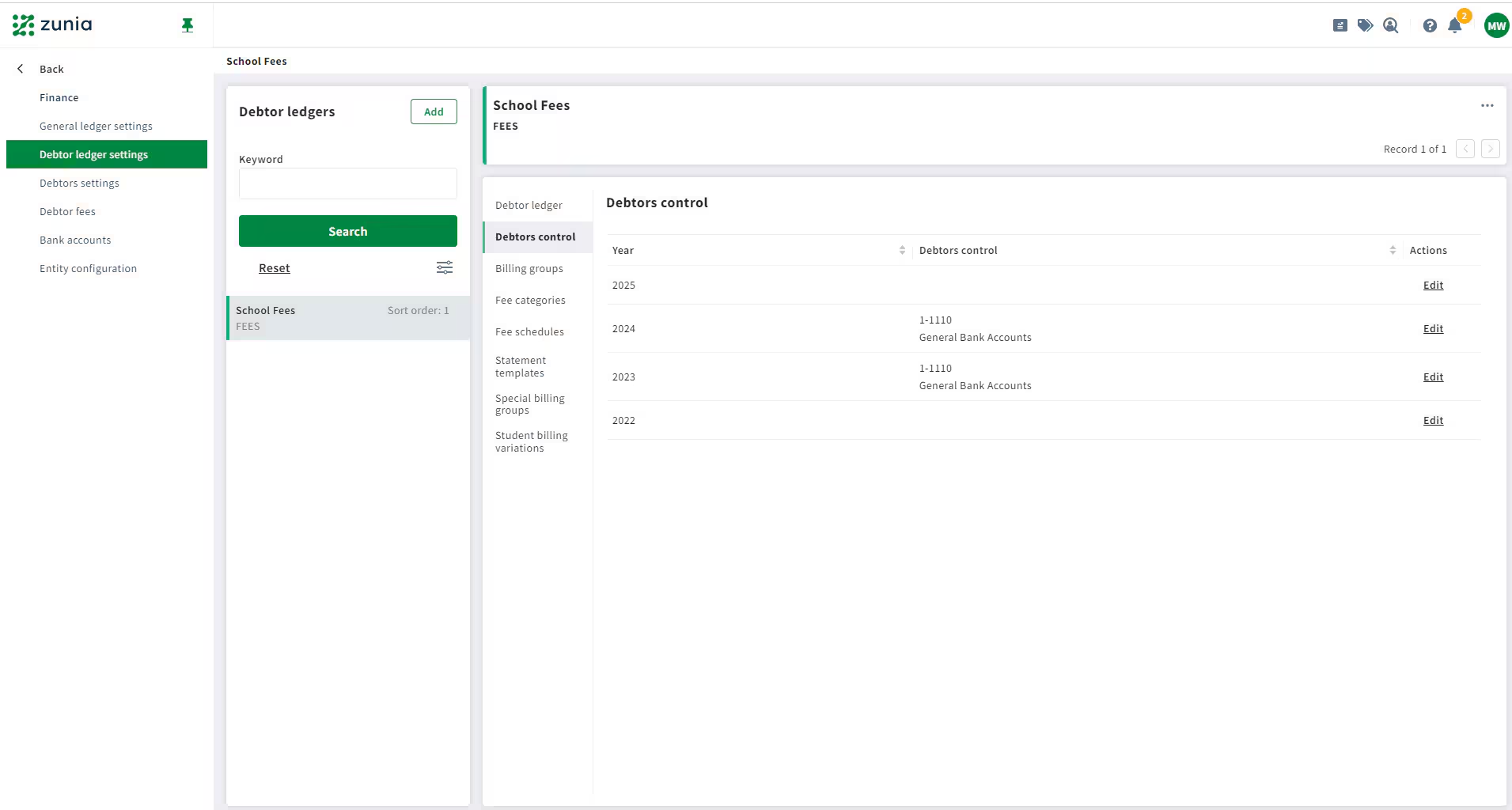
Go to Finance settings > Debtor ledger settings > Debtors control:
- Under Year, find the General ledger year and select Edit (under Actions).
- Apply the Debtor control codes that have been set up for this debtor ledger, then Save.
Step 5: Add fee schedules
Go to Finance settings > Debtor ledger settings > Choose a ledger > Fee schedules:
- Select Add
- Enter a fee type (based on previous schedules), code, description and start/end dates to inform the schedule.
- Select Save.
Create debtors accounts for new students (optional)
You may need to create debtor accounts for new students starting in the New Year, so the school can assign new charges and email statements.
You can either create a debtor account:
- using new contacts
- using existing contacts (already in Zunia).
Create new payment plans (optional)
Payment plans set the amount and frequency the debtor has agreed to pay.
For debtors who want to continue with the same payment plan, you can simply update the fee amounts in the invoice/s raised for the billing period.
If there's an end date to an existing payment plan or you can't update the amount charged over the billing period, you can create a new payment plan and add newly created charges to those plans.
Reconciliation reports to balance cash accounts (optional)
This gives you a report showing all of the transactions associated with a GL code for a specific GL year. This step is only necessary if your school uses the cash accounting method, instead of accrual accounting with a MYOB or Xero account.
Outstanding balances carried forward (optional)
If there are debtor accounts with outstanding balances from the previous year, Zunia automatically carries forward any remaining balances to the new year when Jan begins.
Congrats! You’ve completed the year-end finance checklist.
Was this article helpful?
That’s Great!
Thank you for your feedback
Sorry! We couldn't be helpful
Thank you for your feedback
Feedback sent
We appreciate your effort and will try to fix the article