TABLE OF CONTENTS
Introduction
When preparing for a new school year, you can bulk transfer any graduating students, like those completing year 12, into a past student. This will ensure your student profile records are up to date before the next academic period begins.
Graduating students should not be transferred to past students until after student rollover is completed to make sure repeating students or final year students are accounted for.
A current student may also leave your school during the school year to move overseas or to another school. If this happens, they should be transferred to Past students so you can retain their contact details for administrative purposes or future alumni engagements.
Transfer graduating students
Follow the steps in this checklist to confirm you’ve completed academic and student rollover, transferring graduating students to past students.
- Step 1: Set status for final year students
- Step 2: Check enrolment settings for leavers
- Step 3: Run the Leavers bulk transfer
- Step 4: Review and approve bulk transfer
Step 1: Set status for final year students
For students who are in their final year and are graduating, update the rollover settings to transfer them to Past students.
Go to Student profiles > Rollover & bulk transfer:
- Select Rollover settings under your user settings icon
 .
. - Check the Year level for each Year included in the list is set to ‘Leaving’ and a Reason for leaving is selected.
Step 2: Check enrolment settings for leavers
Go to Current students:
- Search/select the student and then select the Enrolment tab.
- Under Enrolment periods, check leavers that aren’t in their final year have a leaving date, reason and destination. If not, you can select Edit to add these details.

Step 3: Run the Leavers bulk
Go to Student profiles > Rollover & bulk transfer:
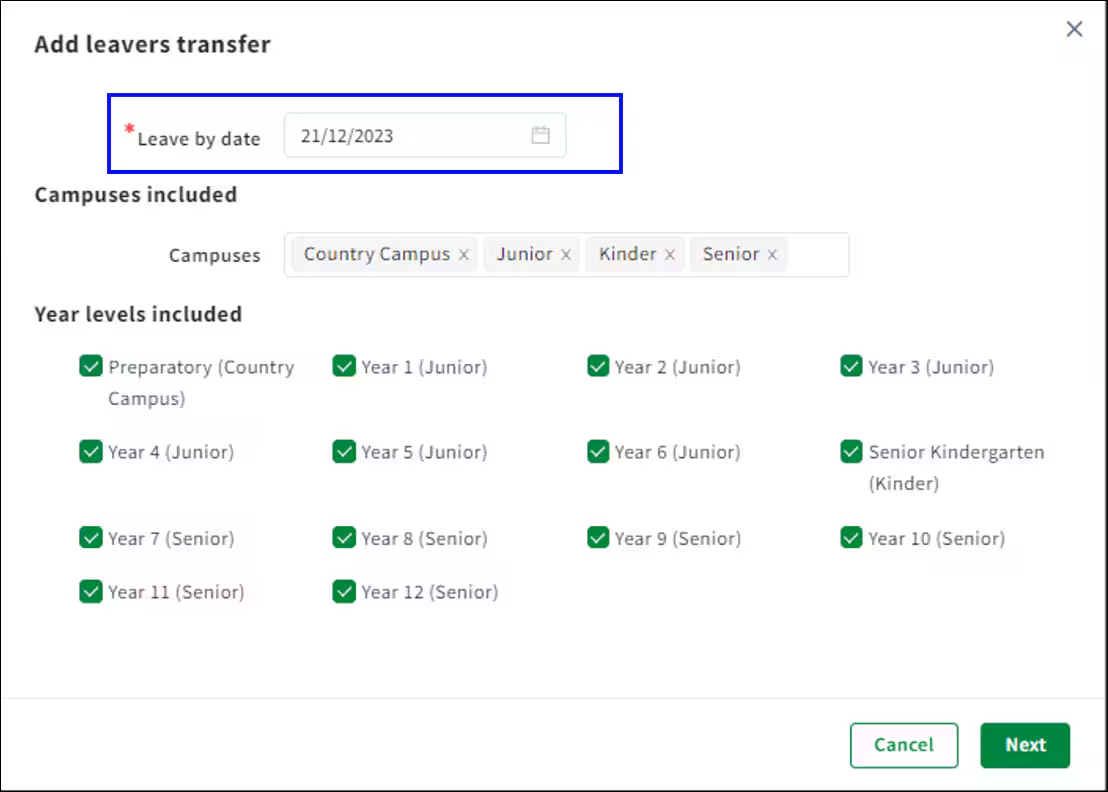
- Select Add transfer, then Leavers.
- Leave by date: the last day of current school year (will be validated against student leaving date timeline).
- When you’re ready to run the transfer, select Next and any students leaving up to or on the Leave by date will be transferred to past students.
Step 4: Review and approve bulk student transfer
To complete the transfer process, you need to review and approve the details.
- To see a summary of the Leavers transfer details, select View report. It can take a few minutes, but you’ll see a new Notification via the bell icon
 when it’s ready.
 - If you’ve made a mistake, you can revert a student rollover to undo these changes.
- Once you’ve confirmed the transfer numbers are correct, select the transfer you want to approve and then Approve transfer.
You’ve bulk transferred leaving students to past students.
Transfer students leaving
Complete the steps below to transfer students who are leaving or unenrolling from your school to past students.
- Go to Student profiles > Current students.
- Search for a student by Name or ID and select them from the list to open their profile.
- You can also filter All current students by term by selecting the drop-down arrow
 , or apply advanced filters to get more specific.
 - In the student profile header, select the three dots
 and Transfer to past student.
 - Complete fields to define a past students.
- Selecting a Leave date.
- Adding a Leaving reason and Destination if known.
- Typing PAST in the last field to confirm you’re ready
- Select Transfer.
You’ve finished transferring a student leaving to past student status.
The student will now appear in past students under Student profiles > Past students.
If you’ve made a mistake, a Past student can be transferred back to a Current student at any point – simply select the dots in their student profile header, then Transfer to current student.
Was this article helpful?
That’s Great!
Thank you for your feedback
Sorry! We couldn't be helpful
Thank you for your feedback
Feedback sent
We appreciate your effort and will try to fix the article