TABLE OF CONTENTS
- Introduction
- Add grades in a marks book
- Add comments to a grade
- Automatic score calculations for assessments, groups and syllabus
- Calculation of Rank
Introduction
Once the Marks book is setup, you’ll automatically see all assessments, learning criteria and/or outcomes related to the subject so students can be graded efficiently.
You can add grades and comments to a marks book to assess student progress against learning criteria and/or outcomes available. Scores and ranks are automatically calculated and updated as grades are entered for students.
Add grades in a marks book
To start adding grades, go to marks book:
1. Select the class you want to grade and the marks book will open.
2. Depending on how it’s been set up, you can enter the grades for a student against each of the criteria.
For example:
If a syllabus is assigned to a subject, the student can be graded against the strands visible in each column.
If a subject assessment exists, students can be graded against the assessable criteria. This is made up of custom or syllabus defined learning outcomes (if assigned to a subject).
Syllabus outcome: learning criteria/outcomes are defined by the curriculums available in Zunia to assign to a subject.
Custom outcome: defined within an assessment [hyperlink to relevant guide] by your own learning criteria if needed.
3. Once grades are entered, they’re automatically saved.
Depending on the grading scale given to the assessment, enter either a number or a percentage or choose a text grade.
Now you’ve added grades to a marks book.
Add comments to a grade
Once you have recorded a grade, you can add a comment to it. To add comments to a grade:
- Select a grade and then select the comments icon
 .
. - Enter your comment and select Submit. You can also edit or delete the comment here.
Now you’ve added comments to a grade. Grades with comments will show a grey comments icon  .
.
You can edit or delete a comment by selecting the grade and selecting the comments icon again.
Automatic score calculations for assessments, groups and syllabus
Scores for the assessment group/assessment and subject are automatically calculated and updated as grades are entered in a marks book.
Assessment score
The assessment score is the average or sum of the grade received for criteria within an assessment.
Score calculations for an assessment vary slightly based on the grading scale used.
- For a Number grading scale, the assessment score is the sum of the grades for all criteria within the assessment. This is the default unless changed.
- For both the Letter and Text grading scales, the assessment score is the average grade for all criteria within the assessment.
Assessment group scores
The assessment group score is the average score for all assessments within an assessment group.
Assessment scores in marks book are converted to a percentage and used to calculate the average score for all assessments in an assessment group.
The assessment group score will be different depending on whether weights were set up in Subject details.
If you add weights in Subject details, the assessment group total score is calculated from the score of each assessment in the same academic year and multiplied by each assessment’s own allocated weight. These scores are then added together for the assessment group score.
If you don’t add weights in Subject details, the assessment group total score is calculated on the overall average of assessment scores only.
Grading subject assessments and syllabus subject
The subject assessment score is the average score for all assessments in an assessment group in combination with any weighting applied. If there’s more than one assessment within a group, the overall score will be the sum of assessment scores in combination with the group weighting and any weighting applied to each assessment – this must not be greater than 100%.
If a syllabus is assigned to the subject, you can also score students against the subject syllabus strands in the marks book. The syllabus subject score is the average sum of the syllabus columns.
If you don’t add weights in assessments, the subject score is calculated on the overall average of assessment scores.
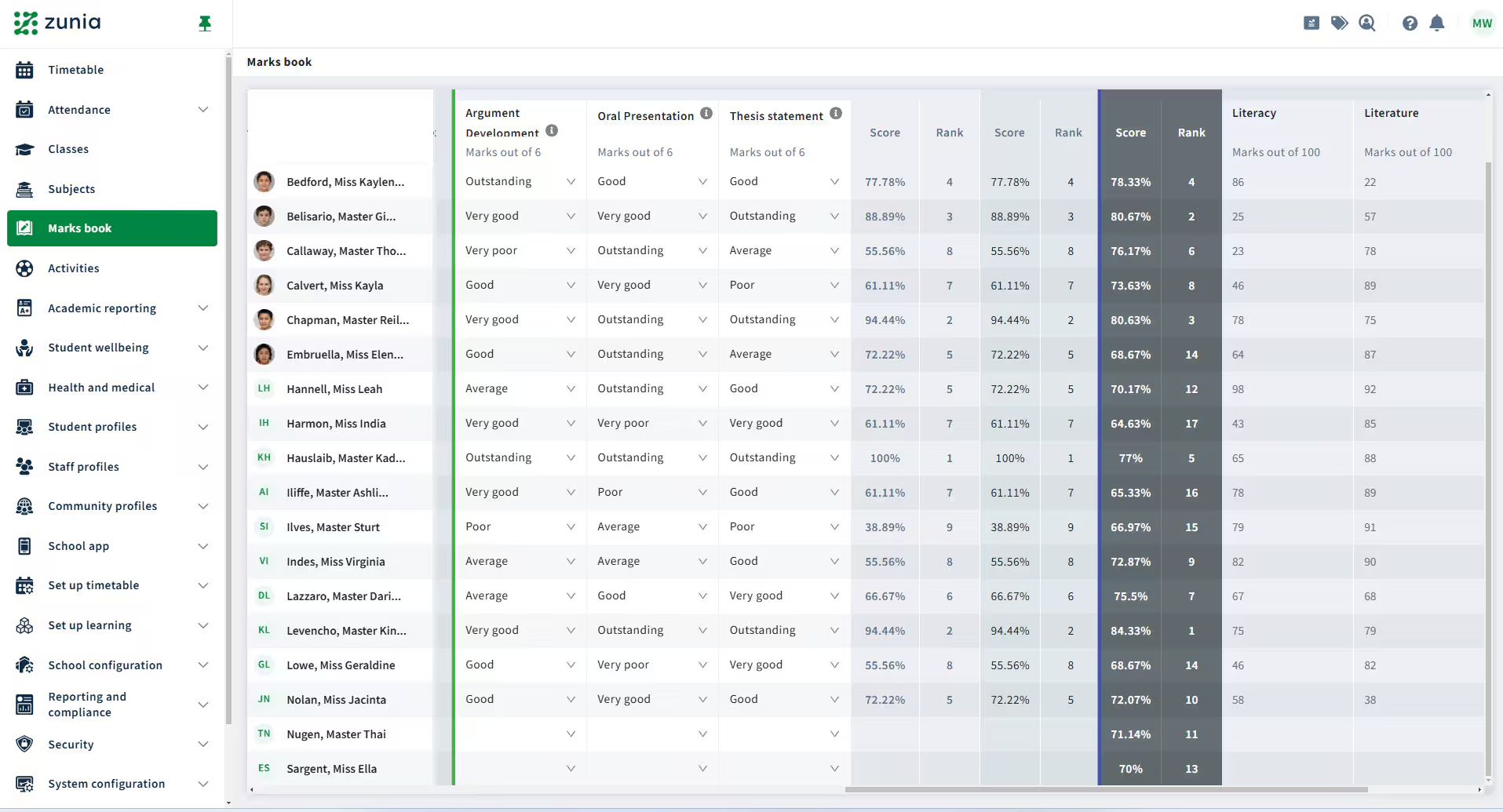
Pictured: Preview of subject assessment and syllabus subject scores automatically calculating total scores.
Calculation of Rank
Ranks for the assessment groups, assessments and subject in a marks book are automatically calculated and updated depending on the grade.
Rank is a calculation that sorts all the students on the list based on their scores. The student with the highest score will receive a rank of 1. The student with the lowest score will receive the highest numbered rank, for example a rank of 15 if there were 15 students on the list.
In the case where two or more students have the same score, they will receive the same rank. For example, in a class of five students, if two students are tied for 3rd rank, the rank numbers for the class would be 1, 2, 3, 3, 5. Rank 4 is skipped because the student that scored the lowest on the assessment would be the 5th ranked student in a class of 5 students.
Was this article helpful?
That’s Great!
Thank you for your feedback
Sorry! We couldn't be helpful
Thank you for your feedback
Feedback sent
We appreciate your effort and will try to fix the article