TABLE OF CONTENTS
- Data Mapping
- Errors and Warnings
- Interpreting the STATS data
- Inclusion/Exclusion Criteria
- Downloading and submitting your STATS report
Introduction
Use this guide to troubleshoot Zunia configurations for the STATS Report for Australian non-government schools.
The STATS compliance report in Zunia allows you to export attendance summaries over the report period for all students in the selected year levels. An Excel document will be generated in a format that allows you to copy and paste the data straight into the official STATS Student Level Data Collection Tool spreadsheet available from Australian Schools Hub
Note : Exported Zunia STATS data fits the SchoolsHub Student Level Data Collection Tool
After downloading the Student Level Data Collection tool you may need to disable macros. Select file properties and Unblock.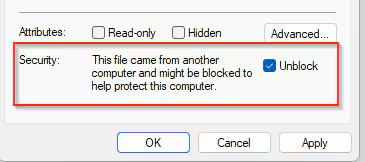
Australian schools are required to submit STATS attendance twice yearly :
- Semester 1
- Term 3
To Run the STATS Export
- Select Reporting and Compliance → Compliance Reports
- Select your state in the STATE field
- Select STATS
- Select View Data Mapping and ensure all relevant fields are mapped as per Aus Gov requirements. Compliance reports mapping
- Select Export
- Add/Remove required Year Levels
- Select the academic period which matches the reporting period date range
- Select the required date range (from schools hub)
- Select Export
- On completion a downloadable Errors and Warning list will be produced
- Once all Errors have been resolved the export file will be available for download and submission.
Data Mapping
There are 4 data points which require to be mapped for the STATS export.
The STATS upload tool requires you to use specific values for data points such as Gender, Indigenous Status, Year Level and Full Time Indicator. Zunia maps the values you use for these data points to the required output values using Data Mapping.
Do this in Reporting and Compliance → Map Compliance Data → STATS
| Year Level | 1 to 10 - Year levels 1 to 10 11MINUS - Students 11 years or younger that cannot be readily allocated to a year of education 12PLUS - Students 12 years or older that cannot be readily allocated to a year of education. | Indigenuity | Y - Aboriginal or Torres Strait Island students N - Not Indigenous students or not stated |
| Gender | M - Male F - Female X - Other. | Full Time Indicator | Y - Full Time student N - Part Time student |
Errors and Warnings
Zunia creates an Errors and warnings report for each Export. Errors are critical issues that will have wide-reaching consequences in the report, and will prevent it from being created.
The most common errors relate to missing data mappings or students with critical missing data.
Warnings are lesser issues which usually relate to missing data for individuals, e.g. gender not being defined for a student.
The Errors and warnings column will display the number of errors or warnings encountered in an export.
Select this summary to open a modal displaying the first 5 errors and warnings. Select “View the full errors and warnings report” to review all errors and warnings related to your export. Once you have resolved any errors and required warnings the export file will be downloadable for export.
Interpreting the STATS data
The Year_Levels sheet will list the number of days on which a counted attendance record exists for students in each year level. This represents the total number of teaching days for each year level. In most instances, this number should be the same for each year level. If they differ unexpectedly it is most likely the result of missed days of attendance or students having been marked with counted attendance types on non-teaching days.
For example, if the school closed unexpectedly for a day and lessons did not take place, the students should be marked with an uncounted attendance type given this is a non teaching day. If students are marked with a counted absence type for this day, the count on the Year_Levels sheet for this year level will be incorrect. Other common causes are students being marked as present or a counted absence on non-teaching days such as public holidays or weekends
Inclusion/Exclusion Criteria
| Year Level | Students must have a year level selected in the Year Level field on the School sub-tab of Student Profile. |
| Count As Absence | Student absences are only recorded when absences are created with an attendance reason that has the Counted field = Yes in Attendance → Add or Edit Attendance Reasons |
| Attended | A Student must have at least one day marked Attended during the reporting period to be included in the STATS export |
| Non Teaching days | Non teaching days (ie public holidays) must be entered in Set Up Timetable → Teaching and Non Teaching Days to accurately calculate Attendance Days |
This table lists each field in the STATS output file and any important attributes or configuration considerations.
| Column | Heading | Description |
| A | Location AGEID | Location AGEID issued to your organization by the Department of Education. Configuration and comments
|
| B | Year Level | Year level of the student Configuration and comments
Note: Only special education schools can report using the 11MINUS and 12PLUS values. |
| C | Gender | Gender of the student Configuration and comments
|
| D | Student Type | Indigenous Type of student Configuration and comments
Note : You need to map Indigenous Status values to STATS values using the STATS Map Compliance Data setting. |
| E | Possible School Days | Number of enrolled days for full-time students in the selected cohort during the reference period. Configuration and comments
Note : You need to map Full Time Indicator values to STATS values using the STATS Map Compliance Data setting. |
| F | Attendance Days | Number of days students in the selected cohort attended school during the reference period. For any given school day during the reference period, students with absences:
Configuration and comments
|
| G | Students with <90% attendance | Number of full time students in the selected cohort that attended less than ninety percent of the possible school days during the reference period. Configuration and comments
|
| H | Students with ≥90% attendance | Number of full time students in the selected cohort that attended ninety percent or more of the possible school days during the reference period. Configuration and comments
|
| I | Possible School Days for Students with ≥90 attendance | Number of enrolled days for students in the selected cohort that attended ninety percent or more of the possible school days during the reference period. Configuration and comments
|
| J | School Days in Reference Period | Number of school days for the cohort during the reference period. Configuration and comments
|
Downloading and submitting your STATS report
1. Select the download button next to the most recent export to download your STATS report in Excel format.
2. Open the STATS Student Level Data Collection Tool spreadsheet and your STATS Export.
3. Complete the Location Details in the STATS Student Level Data Collection Tool. The data required for this sheet can be found in the Location_Details and Year Levels sheets of your STATS export.
4. Select the Student Details sheet on your STATS export, and copy columns A-K excluding the header rows (i.e. only copy from row 3 down)
5. Select the Attendance sheet of the STATS Student Level Data Collection Tool, select cell B4 and paste your copied data (HINT - Use Windows: Ctrl + Shift + V. Mac: Cmd + Shift + V )
6. If you are reporting on Term 3 attendance data, select the Student Details sheet on your STATS export, and copy columns M-N excluding the header rows.
7. Select the Attendance sheet of the STATS Student Level Data Collection Tool, select cell N4 and paste your copied data (HINT - Use Windows: Ctrl + Shift + V. Mac: Cmd + Shift + V )
8. Review the Check List on the STATS Student Level Data Collection Tool.
9. Select the Output Data sheet and select the Create XML button for each reporting period.
10. Login to Schoolshub and upload the XML file created by the STATS Student Level Data Collection Tool
Was this article helpful?
That’s Great!
Thank you for your feedback
Sorry! We couldn't be helpful
Thank you for your feedback
Feedback sent
We appreciate your effort and will try to fix the article