TABLE OF CONTENTS
Introduction
An Aged balances report shows you which account are unpaid and how long they’ve aged (or have been outstanding) since the date due.
Run an Aged balances report
For the best results, run this report after you’ve processed payments for the day and have reconciled your school’s bank accounts.
To export an Aged Balance due report, go to your Finance entity > Reports:
- Under Report categories, select a finance entity for which you want to run the report for. E.g. [Finance entity name] > Debtor.
- Search for and select Aged balances report to open up the report properties..
- From the drop-down menus select a Finance entity, Debtor ledger and Date you would like all outstanding aged balances to be pulled from.
E.g. If a school wants to know which debtor accounts are overdue from the start to end of Jan, they can run the report with the ‘as at date’ set to 31/01/2024.
4. Under user settings  , select Run report.
You’ve exported an Aged Balance report.
, select Run report.You’ve exported an Aged Balance report.
Understanding the report results
The columns shown in the report below show how long an account is unpaid or aged since the due date (in 30-day intervals).
Columns | Description |
| Current | Current account balance – Invoice not due yet. |
| 1+ days | Invoice became due in the last 1-30 days. |
| 31+ days | Invoice became due in the last 31-60 days. |
| 61+ days | Invoice became due in the last 61-90 days. |
| 91+ days | Invoice became due in the last 91 or more days. |
| Billing group | A pre-defined group determines the billing frequency for the account. |
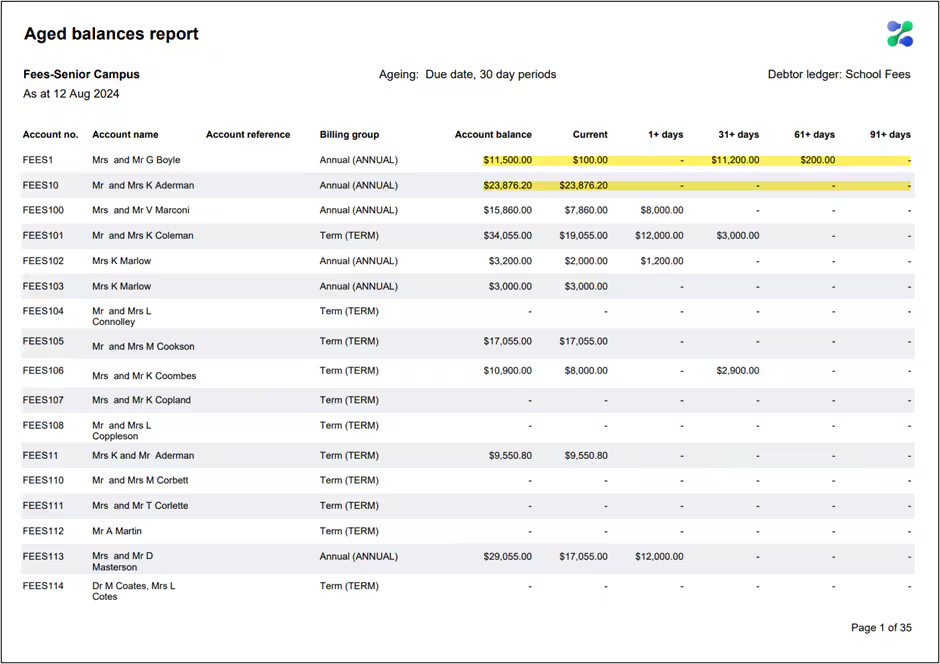
Download a sample of an Aged balances report (PDF)
Was this article helpful?
That’s Great!
Thank you for your feedback
Sorry! We couldn't be helpful
Thank you for your feedback
Feedback sent
We appreciate your effort and will try to fix the article