TABLE OF CONTENTS
- Add alerts to a student profile
- Introduction
- How alerts display
- Add an alert
- Create a new alert category
Add alerts to a student profile
Introduction
Alerts highlight important information in a student profile. For example, you can add an alert to let teachers know a student is having a tough time at home. Or, that a past student has been harassing students on school grounds after hours.
How alerts display
Banner
Alerts display as a banner on the student profile.
Note: users need permission to view the full alert. If you don’t have the right permission, contact your school Zunia system administrator.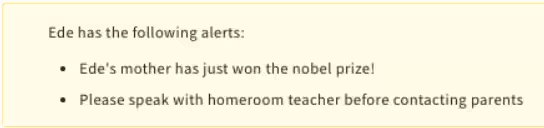
Pop-up
You can also make the alert pop up as an overlay over the whole screen to give it extra visibility. Use pop-up only when it’s critical that staff see the message when they open the student’s profile.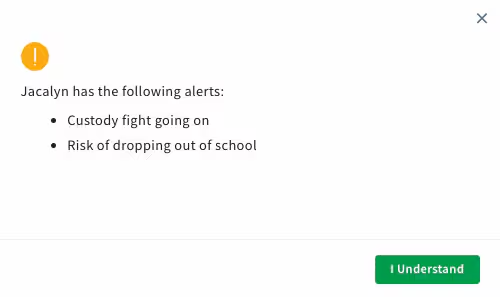
Add an alert
To add an alert, go to Student profiles > Current student profiles or Past student profiles or Future student profiles.
On the past, present or future student profile page, enter the student’s name and select Search.
Select the student.
Select Alerts.
Select Add.
Note: the alert you want to add may have already been added but is now expired. To check, select All so that active and expired alerts display in the list.
If you find a similar alert in the Message column, select View. Then you can reactivate the alert instead of creating a new one.
To reactivate the alert, select Edit and then select the calendar icon. Use the arrows to select the alert's new Start date and End date and then select Save.
Select a Category.
If you want the alert to start or end at a specific time, set a Start date or End date.
To make the alert more visible, select Pop-up. The alert will pop up over the entire screen.
Enter the Message. This text displays in the banner or pop-up.
Select Save.
Create a new alert category
Your school administrator can set up new categories. If you need to add a new category:
Select Category.
Select Add item.
Enter a Code.
Enter a Category description.
Select Active.
Select Save.
Was this article helpful?
That’s Great!
Thank you for your feedback
Sorry! We couldn't be helpful
Thank you for your feedback
Feedback sent
We appreciate your effort and will try to fix the article