TABLE OF CONTENTS
- Introduction
- Attendance types
- Select your class
- Mark the roll - mark all students at once
- Mark the roll - mark individual students
- Mark the roll for another teacher
- Marking a student as Late
- Notes
Introduction
Keep track of student attendance in your class.
Mark the roll with 3 attendance types to choose from.
Attendance types
There are 3 attendance types to choose from - Present, Late and Absent. An icon represents each attendance type: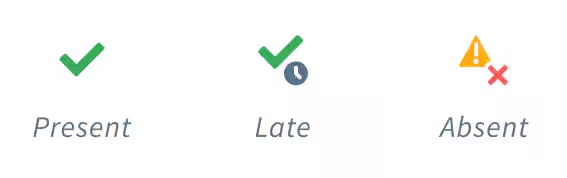
Select your class
The first step is to select the class you want to mark the roll for.
There are two ways to get to your roll: Go to Timetable and select the class, or select Mark roll and select the class from your Zunia homepage.
The attendance roll will display. The day and period you are marking the roll for will be highlighted. You can change the day or period by clicking on the date or period you wish to mark the roll for.
Mark the roll - mark all students at once
The fastest way to mark the roll is to mark all students as Present, and then update the attendance for any students that are Absent or Late.
To do this, select Mark all to mark all students in that class as Present.
Note: Any students with an attendance type already marked for that class, will not have their attendance changed if you Mark all.
Mark the roll - mark individual students
Each time you select a cell, the attendance type for that student changes.
To mark a student as Absent or Late: Select the cell next to the student's name. The attendance type changes from Present to Absent. To mark the student as Late, select the cell again. Keep selecting the cell until the desired attendance type appears. Select Save when you're done.
Mark the roll for another teacher
To mark the roll for another teacher, go to Timetable and select the teacher or staff member from the drop-down menu. Their timetable will be displayed.
Mark the roll for the other teacher.
Marking a student as Late
When you mark a student as Late, the time will be recorded as the arrival time.
Arrival times can be edited. Add Arrival time to mark the actual time they arrived.
Notes
Only one period can be marked or edited at a time
If a class is timetabled across multiple periods in a day, eg; morning and afternoon roll call, these will be displayed in separate columns.
Last known attendance
Each student's last known attendance of the current day will be displayed next to their attendance mark.
Hover over the last known attendance to tell you when it was marked and by who.
Absences
Any absences marked in the roll, will go to Unresolved absences for follow-up by an attendance administrator.
Was this article helpful?
That’s Great!
Thank you for your feedback
Sorry! We couldn't be helpful
Thank you for your feedback
Feedback sent
We appreciate your effort and will try to fix the article