TABLE OF CONTENTS
Introduction
Zunia lets you send out your student fees in bulk. But some students will have variations to their student fees. For example, they might receive a sibling discount, and you might need to bill some students separately (manually).
To make sure each student is billed the correct amount during the bulk student billing process, you can edit the billing information in their student profile.
Find a student
To find a student, go to Student profiles and then select Current students, Past students or Future students.
Next, use the filters to help you find the student.
Your search results display.
Select the student from your search results.
Edit the fee variations
When you've found the student, you can edit the fee variations:
- Select the student.
- Select Billing.
- In Fees, to open the fee options, select Edit. The fee options display.
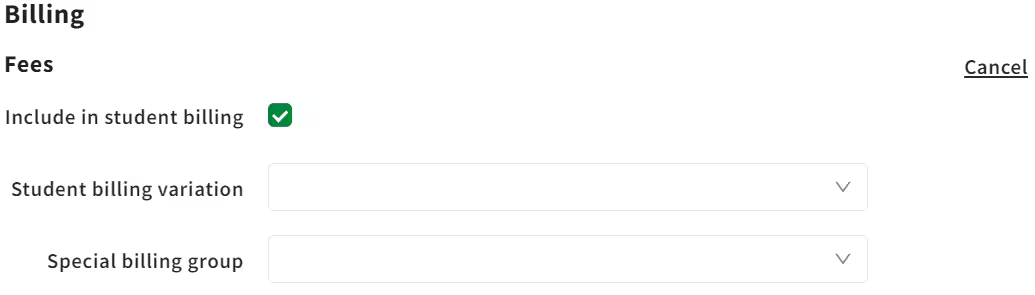
- Include in student billing: Use this to include or remove a student from bulk student billing. You can remove any student from the bulk billing process and charge them manually. You can add them back again at any time.
- Student billing variation: Select the student billing variation. This can include sibling discounts, scholarships, etc.
- Special billing group: Select a special billing group. You can include late starters or mid-year entry students who’ve missed being in the initial bulk billing run.
Note: If you want to set up a student billing variation or a special billing group, go to your finance entity and select Finance settings > Debtor ledger settings and then select Student billing variations or Special billing groups.
- When you’re done, select Save.
Next, you can manage the debtor accounts for this student.
Was this article helpful?
That’s Great!
Thank you for your feedback
Sorry! We couldn't be helpful
Thank you for your feedback
Feedback sent
We appreciate your effort and will try to fix the article