TABLE OF CONTENTS
Introduction
In this guide we show you how to navigate around Zunia using the different parts of the screen.
Interface
Zunia’s interface is divided into 4 areas:
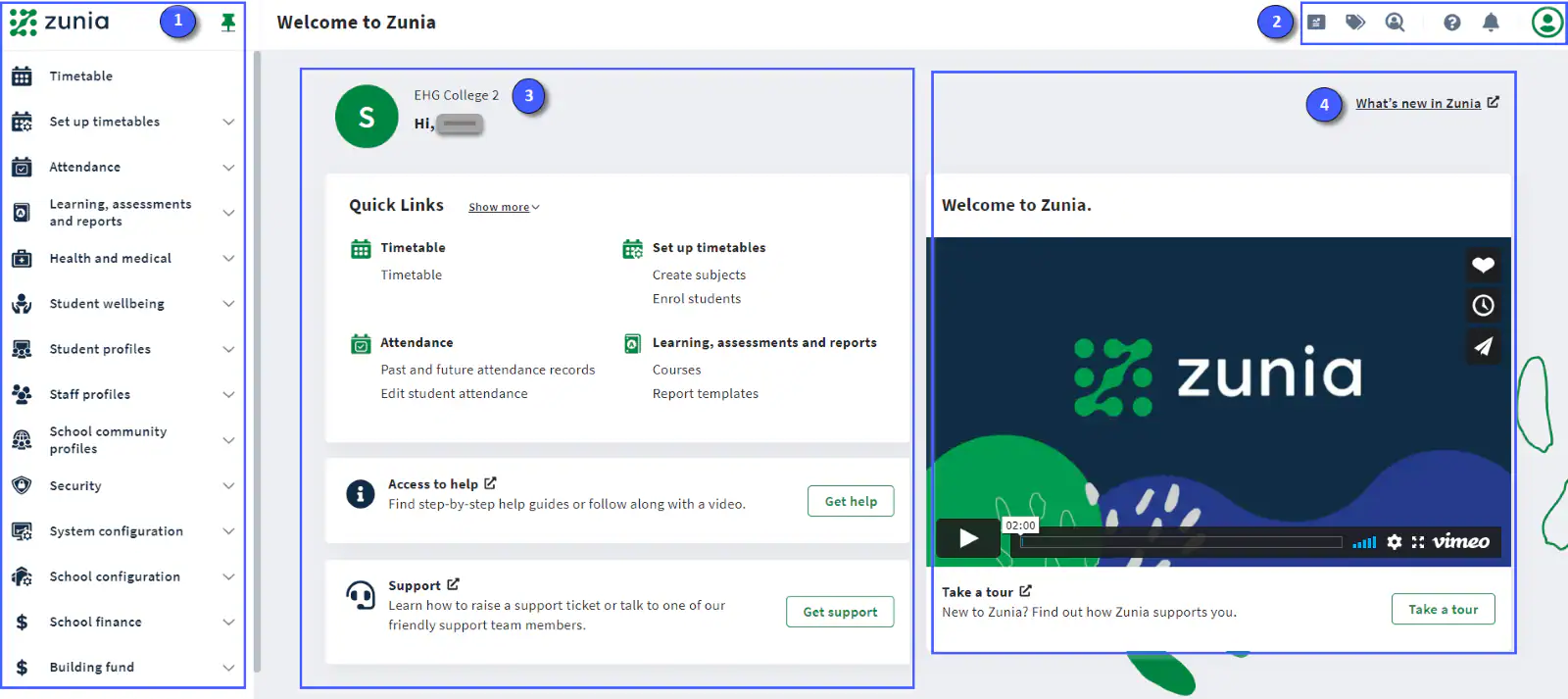
- Navigation menu – access all the Zunia features you have permission to use.
- Top menu – contains Reports, Quick lists, Quick access, Help, Notifications and User Settings.
- Main page – displays quick links, access to get help and support. It then shows the item you open from the navigation menu headings.
- Right pane – displays release notes when you select ‘What’s new in Zunia’ and some helpful video tutorials to help you get started. This pane disappears when you select any headings from the navigation menu. Select
 to access this right pane again.
From the navigation menu you can:
- Access each feature you have permission to use.
- Open, close and pin the menu:
Select the pin
 to close the menu
Select the three horizontal lines
 to open the menu
Select the pin
 to pin the menu
Select the cross
 to close the menu
You can select any item in the navigation menu, and it displays in the main page. Use
 to show or hide more pages in the section you select.
From the Top menu you can:

- Create reports
 from different features in Zunia.
 - Use Quick lists
 to create a list of users. You can send emails or upload a document to members of this list.
 - Do a search in Quick access
 to find a student, view their details and record wellbeing notes. In the student information panel, you can access the student record View Help content or submit a ticket for help by selecting
 .
. - See your notifications when you select
 . Your notifications inform you of tasks completed.
 - Access your user settings
 in a drop-down menu. You can alter and update your user account, or select Logout to exit Zunia.
From the Main page you can:
Complete tasks related to the page you’re on from the Main page area in columns and drop-down menus for your action.
Was this article helpful?
That’s Great!
Thank you for your feedback
Sorry! We couldn't be helpful
Thank you for your feedback
Feedback sent
We appreciate your effort and will try to fix the article