Introduction
You can edit or discard a billing run that hasn’t been approved at any time. This includes changing details like the billing run date, debtor ledger or special billing group.
If fees are updated or changes are made to a student's billing information after you've created a student billing run, you'll need to refresh the billing run to recalculate the charges.
On this page:
Edit a student billing run
To edit a student billing run, go to your [Finance entity name] > Bulk student billing.
- Under Student billing run history, use the search menu to find the billing run you want to edit.
- Select the billing run to open it up.
- Select Actions and then Edit run (see image below).
You can now edit student charges in the billing run.
Select Refresh billing run when you're done.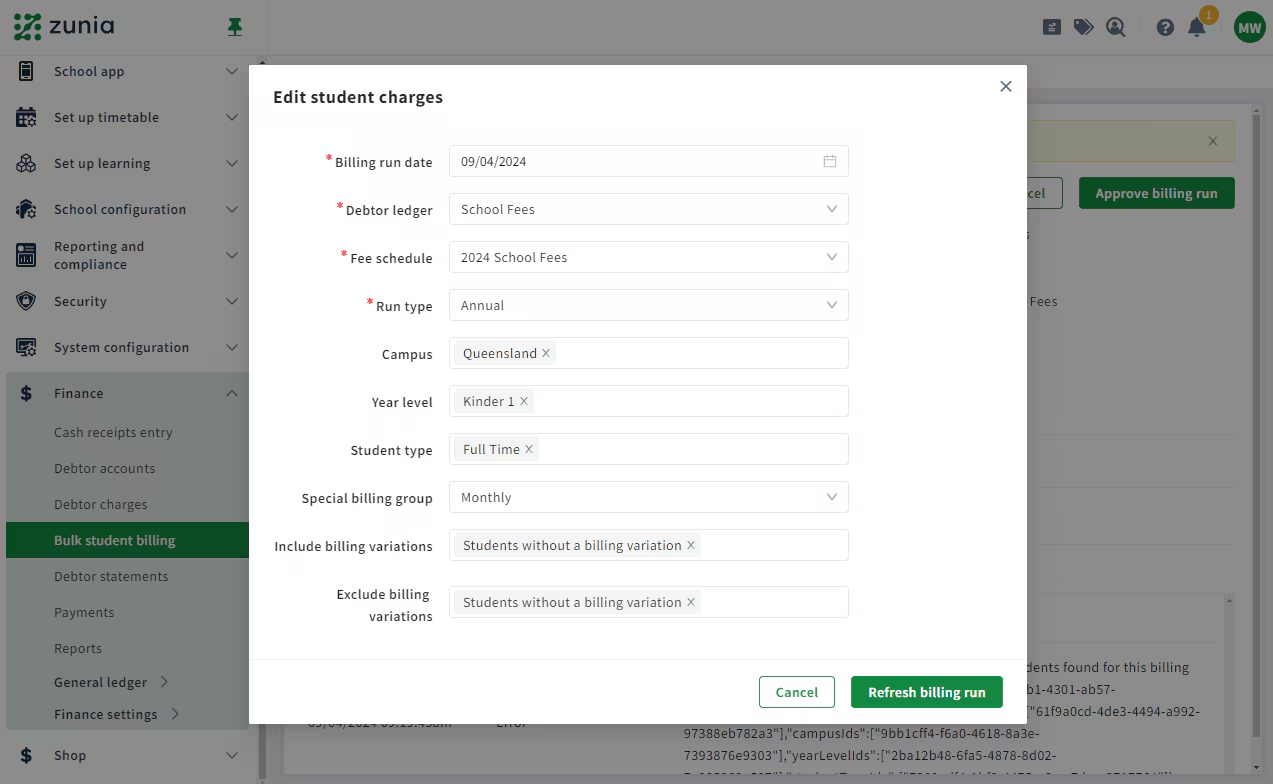
Refresh a student billing run
To refresh a student billing run, go to your [Finance entity name] > Bulk student billing.
- Under Student billing run history, use the search filter to find the billing run you want to refresh.
- Select the billing run the billing run to open it up.
- Select Actions and then Refresh run.
The student billing run is refreshed and the charges are recalculated.
Discard or delete a student billing run
A student billing run cannot be discarded once it’s approved, as it’s already been processed.
To discard or delete a student billing run, go to your [Finance entity name] > Bulk student billing.
- Under Student billing run history, use the search filter to find the billing run you want to discard.
- Select the billing run to open it up.
- Select Actions and then Discard run.
The student billing run is discarded.
Was this article helpful?
That’s Great!
Thank you for your feedback
Sorry! We couldn't be helpful
Thank you for your feedback
Feedback sent
We appreciate your effort and will try to fix the article