Introduction
Bulk student billing automates the calculation of student fees and discounts and lets you bill your students in bulk.
Before creating a billing run for next year's fees, make sure the student rollover process is complete.
Create a bulk student billing run
To add a new student billing run, go to your finance entity and select Bulk student billing.
- First, select Add billing run.
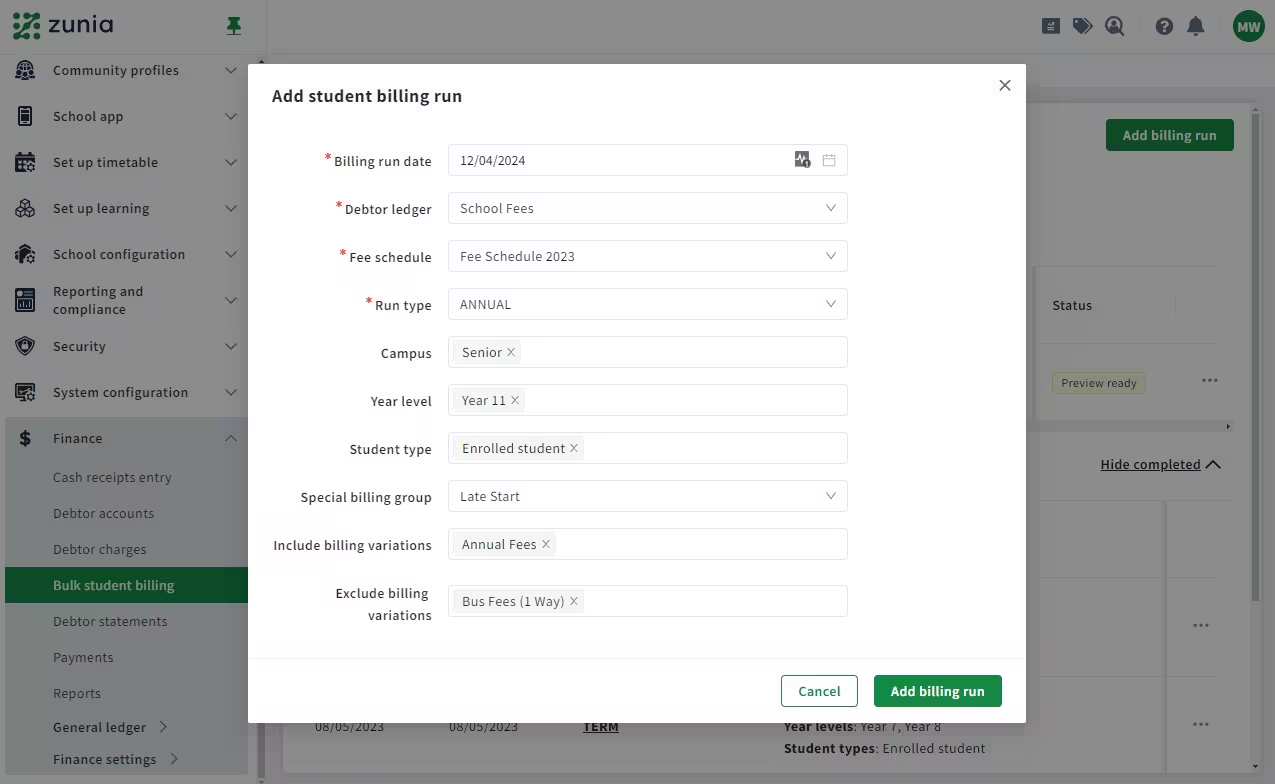
- In Add student billing run, fill in the details of the billing run:
- Billing run date: This is the date you want the fees calculated. It determines which fees to apply based on what year level the students will be in. For example, you might want the fees calculated at the beginning of the next school year.
- Debtor ledger: If your school only has one debtor ledger, leave this as is. Otherwise, select the debtor ledger you want the fees allocated to.
- Fee schedule: This will automatically select the default fee schedule based on your selected debtor ledger.
- Invoice issue date: The date the invoice will be sent or issued to the payee.
- Invoice due date: The latest date the invoice must be paid by.
- Run type: Your school sets up the run types based on your billing cycles – they might be once each year, term or semester.
- Invoice template: Select which invoice template to use. If there are none available, you’ll need to set up an invoice template first.
- Campus: If you want to create a billing run for specific campuses, select them here. If you don’t select a campus, the billing run will include all campuses.
- Year level: If you want to create a billing run for specific year levels, select them here. If you don’t select any year levels, the billing run will include all year levels.
- Student type: Use this to create a billing run for a specific student type, such as boarders.
- Special billing group: If you're doing a billing run for students with custom fee arrangements, select a special billing group. For example, there could be a special billing group for students who have started mid-term and were not included in the main billing run. These groups are set up in Finance settings > Debtor ledger settings.
- When you're done, select Add billing run.
- Select Add when the confirmation message displays.
Your billing run is processing. You’ll get a notification  (next to User settings) when it’s ready to review and approve.
Was this article helpful?
That’s Great!
Thank you for your feedback
Sorry! We couldn't be helpful
Thank you for your feedback
Feedback sent
We appreciate your effort and will try to fix the article