TABLE OF CONTENTS
- Introduction
- Student rollover checklist
Introduction
Current students who are graduating cannot be rolled over to the next school year until:
- the end date for the current academic year has passed, and
- all academic and compliance reporting for this timeframe is finished.
Student rollover checklist
Follow the steps in this checklist to confirm you’ve completed academic and student rollover for the new year:
Step 1: Add a new academic year
If a new academic year hasn’t been set up already, this is the first step. If it already exists, continue onto Step 2.
Go to School configuration > School structure > Academic year.
- Under your user settings icon (top right), select Add academic year.
- Enter a year code, name and the start and end dates
- Leave Active selected to make it available when timetables, classes enrolments and/or student rollovers are created.
Step 2: Add academic periods (terms or semesters)
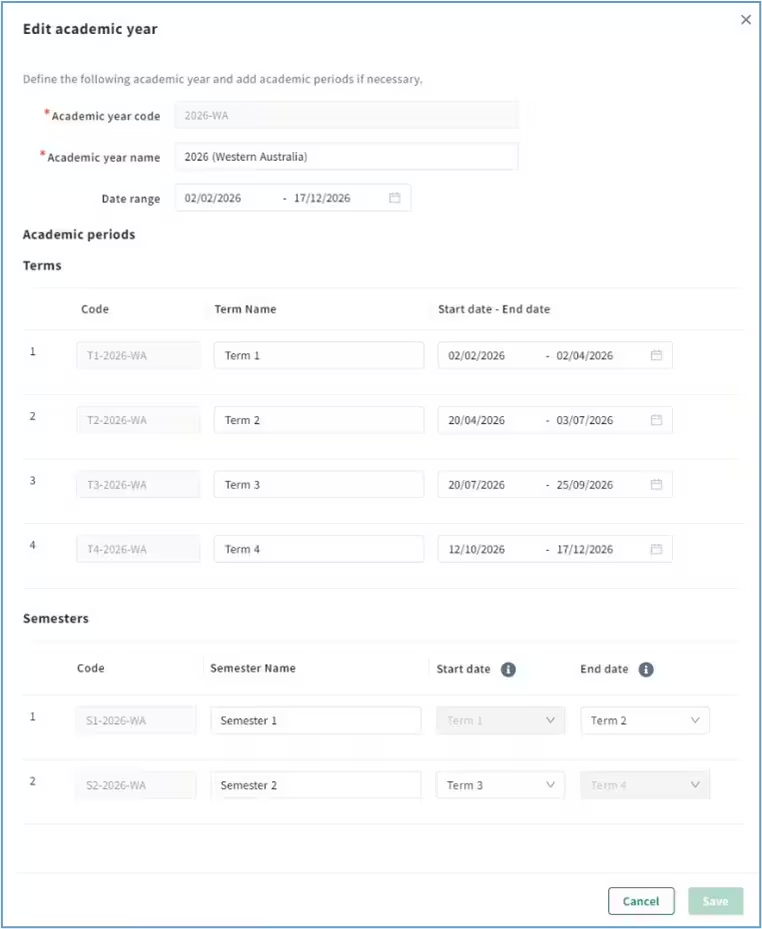
Under Academic periods, select Add terms or Add semesters to define unique codes, names and start / end dates for each period, then select Save.
For example:
- Semester code: S1-2026-WA
- Semester name: Seme
Step 3: Set rollover settings
To begin the rollover process, set the enrolment properties for each year level you need to include in the rollover.
Go to Student profiles > Rollover & bulk transfer.
- Select Rollover settings under your User settings icon
 .
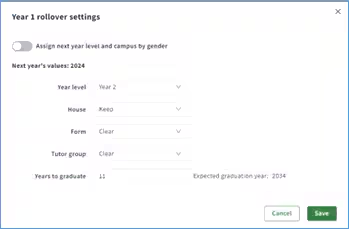
. - Review the core enrolment properties for each year level, to check that This year (from) and Next year (to) are correct.
- Apply ‘Keep’ or ‘Clear’ correctly to each property, including the House, Form, Tutor group or Roll group from next year’s enrolment.
- Keep = Students will keep values, like tutor group, after rollover.
- Clear = Values will be after rollover and will need to be updated for each student.
- If a property needs updating, select Edit (under Actions column) and update your rollover settings in preparation, then Save.
- Set the Years to Graduate for each year level. The final year should be 0 and each year until graduation adds another unit, which will update the Expected graduation year value.
- Under properties included, select ‘Boarding’ or ‘Locker’ from the Optional enrolment properties if required.
Step 4: Update students leaving or repeating
Before continuing students are rolled over, you need to update enrolment records to capture exceptions for students who are:
- leaving before graduating e.g. moving overseas and aren’t graduating from a final year (years 6 or 12)
- repeating and won’t continue into the next year.
Leaving students
Go to Student profiles > Current students:
- Search for and select the students' name to open their profile, then select Enrolment.
- Update the student’s enrolment period with a leaving date, reason and destination by selecting View, Edit and Save to confirm the changes.
- To assign an effective leaving date for students leaving who aren’t in their final year, select the School tab and under Timeline events, select Add.
- For final year students (e.g. Yr6 or Yr12) no further action is needed.

Repeating students
Go to Student profiles > Current students:
- Search for and select the students' name to open their profile, then select School.
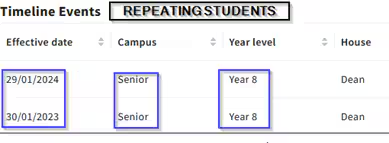
- Set the Campus and Year level to the same as the current one by selecting Add (under timeline events) and updating the relevant fields.
- Effective date: Update to the first day of next year school start date.
- Year level: Keep the same as current year level.
Step 5: Transfer leaving students to past students
Go to Reporting and compliance > Reports.
- Under All reports, type in the codes below into the search menu to find the most relevant report and export a list of leaving students:
- ‘STULEAVE' to look at a subset of leavers e.g. students moving overseas
- ‘STULEAVESUM’ for a summary of all leavers.
- Enter any relevant parameters and select Run report. When the report is ready to download, you’ll see a message in your Notifications – select the bell icon
 (next to user settings) and then View report.
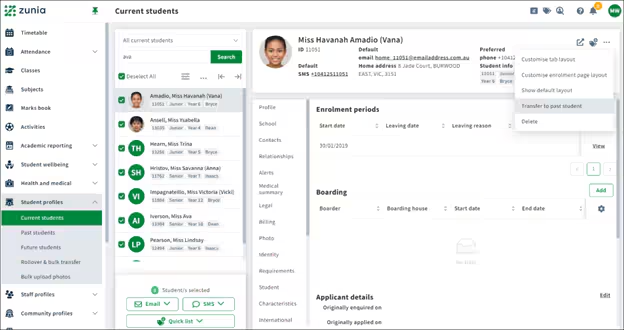
 - Go to Current students, select a student's name to open their profile, then Enrolment.
- For each current student who has left the school (not including final year students), select the 3-dot icon and then Transfer to past student.
Step 6: Run student rollover
Go to Student profiles > Rollover and bulk transfer.
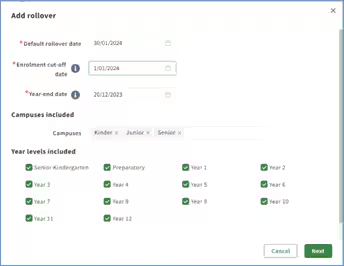
- Select Add transfer, then Rollover.
- Default rollover date:Set the effective date for the new timeline event. This is generally the date when the rollover is performed, so that students' year level and enrolment properties specified in the rollover settings are rolled over when start-of-year preparations begins.
- Enrolment cut-off date: Excludes students with a timeline event after this date.
- Year-end date: Set the last day of the current school year that applies to school leavers.
- To see a list of the changes that will occur by year level, select Next.
- Select View Report and review to check the details are correct.
- When you’re happy with the rollover properties, select Approve rollover.
Step 7: Review and approve student rollover
To complete the student rollover, you need to review and approve the details.
- To see a summary of the rollover details, select View report. It can take a few minutes, but you’ll see a new Notification via the bell icon
 when it’s ready.
 - If you’ve made a mistake, you can revert a student rollover to undo these changes.
- Once you’ve confirmed the transfer numbers are correct, select the transfer you want to approve and then Approve transfer.
You've now rolled over current students into the next year.
Was this article helpful?
That’s Great!
Thank you for your feedback
Sorry! We couldn't be helpful
Thank you for your feedback
Feedback sent
We appreciate your effort and will try to fix the article