TABLE OF CONTENTS
Introduction
Zunia lets you automate billing school fees in instalments with payment plans. Once you've added one or more payees (also known as debtors) and they’re preferred payment frequency and direct debit details, they can be automatically billed.
Your Finance Administrator can edit the payment plan for a debtor account.
In a payment plan, you can change the:
- first payment date to a future date (before the payment plan begins). For example, when a student joins school later in the year.
- number of payments (when creating or closing a plan). For example, when a debtor wants to:
- change the amount of instalments within a payment plan
- change the next payment date
- pay total outstanding fee before leaving the school.
- payment frequencies to annual, half-yearly, monthly, (at any time). For example, when a debtor wants to change the payment period from weekly to monthly.
You cannot delete a payment plan or change the total amount owed if one or more payments have been processed. If you need to add new charges, you’ll need to create a new payment plan to capture any outstanding or additional amounts owed.
Update or edit a payment plan
To edit a payment plan for a debtor account:
- Go to your finance entity and select Debtor accounts.
- Under Debtor accounts, you can search for an account either by debtor or student name.
You can also select the filter icon  and search for a category or group of accounts.
- Select the Debtor name to open the account, then Payment details to view any existing payment plans.
- Select Edit to view remaining payments you want to update. Select Show charges down arrow
 to see the outstanding charges in the payment plan. By default, it selects all charges.a. Under Payment , you can choose from any active payment type:
- Self managed – manual payment.
- Credit cards – select the account holder and the credit or debit card.
- Direct debit – select the account holder and bank account.If there’s no direct debit options available, you’ll need to add a new payment method to the account before it will be available to select.
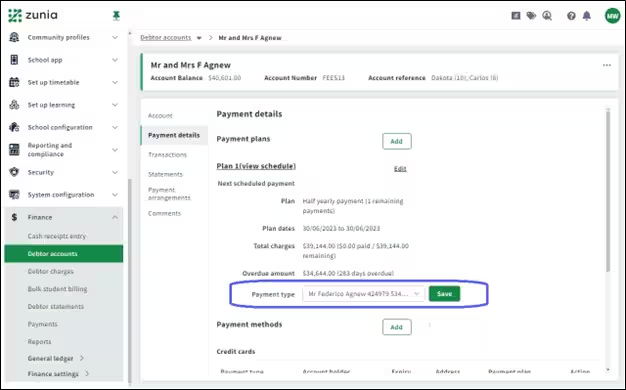
b. To change the payment frequency, select the annual, biannual of monthly.
c. Select the 3-dot icon next to the plan frequency you’ve selected, then Edit.
d. You can edit the number of payments or the next payment date and Save, then the total amount remaining and schedule of charges will be automatically recalculated for the chosen payment frequency.
If one or more payment plan instalments have been processed, you cannot change the total amount owed or extend the plan duration. If new charges need to be added, you’ll need to create a new payment plan to capture any outstanding or additional amounts owed. If you need help deleting a payment plan, contact us.
For example, if a payee or debtor wants to pay off a plan in one hit and establish a new payment schedule for the new financial year to align with their pay day.
5. If the edited payment plan details are right, select Save to apply them to this debtor account.
You’ve finished editing details within a payment plan.
Delete a payment plan
If the total amount owed or duration of a payment plan needs to change, you’ll need to create a new payment plan to recalculate any outstanding or additional amounts.
You may need to delete the existing payment plan to make sure the account balance is updated – to do this, you’ll need to contact us.
Was this article helpful?
That’s Great!
Thank you for your feedback
Sorry! We couldn't be helpful
Thank you for your feedback
Feedback sent
We appreciate your effort and will try to fix the article