TABLE OF CONTENTS
Introduction
You can view or edit a medical incident in Medical information if you want to check the information you have, or add more details when you have them.
View a medical incident
To view an incident, go to Health and medical > Medical information:
Enter the student’s name or ID and select Search.
More than one student record might display, so select the student with the existing medical incident you want to open.
Select the student with the medical incident you want to view.
Select Incident history.
To view the full incident, select forward-arrow icon
 .
.
Note: If you don't to sign out the student, the incident stays open and displays on this screen.
Edit a medical incident
When you’ve created an incident, you can add or change any incident details later.
To view an incident, go to Health and medical > Medical information:
Enter the student’s name or ID and select Search.
More than one student record might display, so select the student with the existing medical incident you want to open.
Select the student with the medical incident you want to edit.
Select Incident history.
- To view the full incident, select forward-arrow icon

- Select More.
Then, from the drop-down menu, select the types of details you need to add and fill them in.
Any extra details you add save to the incident record.
Delete a medical incident
You can delete an existing medical incident.
To delete an incident, go to Health and medical > Medical information:
Enter the student’s name or ID and select Search.
- Select the student with the medical incident you want to delete.
Select Incident history.
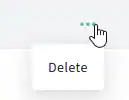
- Select the Ellipses and Delete
Was this article helpful?
That’s Great!
Thank you for your feedback
Sorry! We couldn't be helpful
Thank you for your feedback
Feedback sent
We appreciate your effort and will try to fix the article