TABLE OF CONTENTS
Introduction
There are two ways to create a medical incident. The one you should choose depends on the situation.
Incidents during sickbay hours
This way lets you fill in a quick summary and then sign out each incident when you’re ready. It’s best suited for sickbay hours when you may have more than one student being treated at a time.
Incidents that weren’t recorded right after they happened
This way lets you complete an incident in one go. Use it when the incident wasn’t recorded in the system when it happened. For example, if there was an incident on a camping trip.
Create new medical incident during sickbay hours
To quickly record multiple medical incidents at one time, go to Health and medical > Medical incidents:
Select Add.
Select Student as the Person involved.
Enter the student’s name then select them from the drop-down list.
Enter the time the incident happened in Time in.
Select the date of the incident. To do that, select the Calendar icon and use the arrows to select the Date.
Select the location of the incident. If you can’t find the location in the drop-down menu, contact your school’s Zunia administrator to have it included.
Select Save.
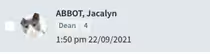
Now that the incident is open, add any extra details to the incident if needed.From the panel, select a student with an open incident.
Select the Incident tab. It should be selected by default.
Fill in the basic details in Incident summary.
To add more details, select More and select the type of details you want to add. The types of details you can add include:
- Medications given
- Injury details
- Notifications
- Follow up
- Restricted activities
- Outcome
- Notes
- Observations
- Documents
Fill in any extra details you’ve added to the incident. You can also add these in after you’ve signed the student out of sickbay.
You can repeat this process for every student waiting in sick bay.
Each time you create a new incident in this way, the incident stays open until you sign the student out of sickbay. So you may have a list of open incidents ready to be signed out.
Was this article helpful?
That’s Great!
Thank you for your feedback
Sorry! We couldn't be helpful
Thank you for your feedback
Feedback sent
We appreciate your effort and will try to fix the article