TABLE OF CONTENTS
- Introduction
- Add brand logo and colours
- Add and publish news
- Add, publish or cancel school events
- Invite parents to start using the app
- Disable academic reports for a student/parent
- Send, receive and delete messages
Introduction
To access the Zunia School app (the app), your Education Horizons onboarding specialist will need to turn on the module. Then your school’s system administrator will set up new features and user permissions in your account.
This guide describes how schools can set up the app to start sharing news and events with your community to centralise all school communications in one place.
Note: Parents can access the latest school communications via the Zunia app (for mobile). They can also log child absences and view their payment/account history, simplifying daily administration for the school and parents alike.
Before any school staff can access the School app in Zunia, your school’s system administrator needs to assign you the School app publisher and/or School app manager role.
- Add brand logo and colours
- Add or publish news
- Add, publish or cancel school events
- Invite parents to start using the app
- Disable academic reports for a student/parent
- Send, receive and delete messages
Add brand logo and colours
To add your school’s logo and brand colour, you need to have School app manager permissions.
Go to System configuration > Branding > School app.
- Under School logo, select Upload and choose an image file.
- Under Primary colour, enter a hex colour code or you can select one from the colour picker menu.
You’re branding will now appear in the app.
Add and publish news
To add and publish a news item, go to School app > News.
- Under the user settings icon, select Add news.
- Add a Title for your news item that sums up what it’s about.
- Write a Description that covers the main points parents need to know.
- Upload PDF attachments with supporting information (if you have one).
- Select Publish to send this news to the news feed on the Zunia app homepage.
Your news will now appear in the app.
To edit or cancel a news item:
- Under News, select the news item you want to update.
- Select Edit to update the content, then Save.
- If you’d like to delete the news item so it won't display in the news feed, find the item under News and select the bin icon

Your news item is now deleted from the app.
Add, publish or cancel school events
To add and publish an event, go to School app > Events.
- Under the user settings icon, select Add event.
- Enter your event details including a title, date, start/finish times, location, a cover image and a brief summary of the event and any relevant PDF attachments (like a consent form), then select Next.
- Select your Audience for the event using year groups and/or students names.
- Select Publish.
Your event will now appear in the app for your chosen audience.
To edit or cancel an event:
- Under events, select the event you want to update.
- Select Edit if you need to change your event details, audience, then Save.
- To cancel an event, select Edit, the Cancel event (under summary). You can add a note to describe why it's cancelled, which will show up on the event.
- If you’d like to delete the event to remove it from the app, find the cancelled event name under Events > Upcoming and select the bin icon
 . Only cancelled events can be deleted.
Your news item is now marked cancelled or deleted from the app.
Invite parents to start using the app
We recommend adding school branding and publishing a few news items or events before inviting parents to sign up to start using the app.
You can either send an email invite to:
- individual parents
- groups of parents
- all parents.
To invite parents, go to School app > Invites.
- Under user settings, select Copy invite link (top right) to your clipboard. Parents can use this to sign up and create an account unique to their email address registered with your school.
- Paste this link into any communications, such as an email or SMS, before sending the invite to parent/s.
You've sent parent/s an email invite link to start using the app.
Disable academic reports for a student/parent
If necessary, you can disable specific contacts or parents from receiving student academic reports.
Go to Student profiles > Current / Past / Future students:
- Use the search of filter
 to find and select the student.
 - Under Profile, select Contacts to view any parents related.
- To see and/or edit their access to Reports, select View.
- Under Student contacts, you’ll see a Field called Reports. If it says ‘No’ this contact is not enabled to receive academic reports via the Zunia School app.
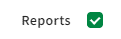
- If you need to disable access, select Edit, then select the tick box next to Reports
 .
.
You’ve disabled a parent or contact from accessing student reports.
Send, receive and delete messages
You can send a message directly to parent/s via the Zunia School mobile app (the app).
If they have push notifications enabled on their device, they’ll be prompted to login to the app to read and/or respond to your message.
You’ll receive daily notifications about new messages received and can view or respond to them quickly in your private inbox.
Send a new message to parents
- Log into Zunia and go to School app > Messages.
To start a new message select Add your message, or if you’re already sent a message select the writing icon in the Inbox panel .
. - Add a Subject line that describes your message (optional).
- Under To, you can add the parent’s you’d like to message, either by searching/selecting their name or their child/ren's names.
Inactive contacts: If the parents account is inactive, you can send them a new invite link to set up authenticate their user account and log into the app to start receiving messages.
Blocked contacts: If the parents account is blocked, this means that someone at your school has disabled their access. To enable permissions, you’ll need to go to Student profiles > Current students > Contacts and select View, Edit, School app tick box .
. - Select Allow replies if you’d like all recipients to be able to reply to your message. This means everyone on the thread will see the reply.
- Select Compose new message and draft it in the field provided.
- You can attach files to the message before send using the by selecting plus
 .
. - When you’re ready, select Send
 .Now you’ve sent a message to parent/s and you'll be notified if they reply.
Delete a message thread
You can delete an existing message thread if you’ve initiated the thread.
- Go to School app > Messages.
- Under inbox, search and select the message to view the thread.
- Select the three-dot icon
 , then Delete message thread.
Your message thread is deleted and records updated in the correspondence log.
Was this article helpful?
That’s Great!
Thank you for your feedback
Sorry! We couldn't be helpful
Thank you for your feedback
Feedback sent
We appreciate your effort and will try to fix the article