TABLE OF CONTENTS
Introduction
After your school admin assigns the report templates to teachers, you can use Manage reports to check how teachers are progressing with their report writing. You can also review the reports and manage the proofreading process.
This guide shows you how to find a teacher, then find all reports assigned to them to complete in this reporting period.
Select reports
Go to Academic reporting > Manage reports. Then, in Select reports define the reports you need.
- Select the year of the report in Academic year.
- Select the academic period (or semester) shown in the report in Academic period. All reports for this academic period will display.
- Select Teacher. A list of all teachers assigned reports to complete in this academic period will display.
- Select Year level to filter by grades or year level. You can add more than one year level or Select all.
- Select Teacher, then select a specific teacher from the list.
- Select Student to view the teachers assigned to any reports for this student.
When you've defined your search, select Apply.
All reports matching your search will display.
Next, you can refine your results by Status.
View all teacher reports by status
Go to Academic reporting > Manage reports. Then, go to Status.
- Select Complete to display reports that are written, reviewed, edited, approved and ready to send to families.
- Select Incomplete to display any teachers who have reports that aren’t Complete yet. The Incomplete status includes reports that teachers haven’t started drafting.
- Select Ready for review to display all teachers with reports that contain one or more sections that are Ready for review.
Now you’ve checked your school’s overall reporting progress. Next, you’ll view how teachers are progressing with their report writing.
View a teacher’s reporting progress
Next to the list of teachers from your search result, you’ll see a bar in Progress. The progress bar tracks report sections assigned to each teacher, not total reports. The colours indicate:
Complete (green)
In progress (blue)
Ready for review (purple).
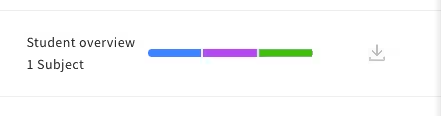
To find more details, hover over the progress bar. You'll see a summary of all report sections assigned to that teacher and the status of those sections.
Now you can view reports assigned to teachers and check on a teacher’s report writing progress. Next, you’ll look for reports by student.
Was this article helpful?
That’s Great!
Thank you for your feedback
Sorry! We couldn't be helpful
Thank you for your feedback
Feedback sent
We appreciate your effort and will try to fix the article