Introduction
Zunia lets you send statements to a debtor by email or download statements to print and post to their address.
This guide shows you how to send debtor statements using email in two ways:
Send statements from a debtor account
First, find the debtor account that contains the statement you need to view, then select the statement you need to email.
Find the debtor account
To find a debtor account:
- Go to your school's finance entity, then select Debtor accounts.
- Next, enter the name of the student, debtor or company name in the Search field.
Any debtor account containing those names display. - Select the debtor account containing the statements you need to view.
The debtor account details will display.
Select a statement
To select a statement in the debtor account:
- First, select the debtor account.
- Then, select Statements to display a list of statements sent to this debtor.
- When you’ve selected a statement from the list, in Actions select the 3 dots
 icon and then select Email.
The Email statement pop-up appears. - In Email statement, fill in your email as normal:
- In the search box enter the name of the debtor and select from the list.
- In Subject enter a subject line for your email.
- You will find the statement already attached to the email. To add more PDF statements as attachments, select the paperclip icon
 and then select a file from your computer. See View a statement PDF.
 - Enter your message.
- Format your message using the formatting toolbar
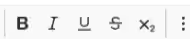 .
. - When you’ve finished your message, select Classification to classify what type of message it is.
- Finally, to send the email to your debtors, select Send.
You’ve now sent a statement to a debtor.
Send statements from debtor statements
To send a statement as an email from the list of debtor statements:
- Go to your school's finance entity, then select Debtor statements.
- Select the statement you wish to send, and then select Email.
The Email statement pop-up appears.
In Email statement, fill in your email as normal:
- In the search box enter the name of the debtor and select from the list.
- In Subject enter a subject line for your email.
- You will find the statement already attached to the email. To add more PDF statements as attachments, select the paperclip icon
 and then select a file from your computer. See View a statement PDF.
 - Enter your message.
- Format your message using the formatting toolbar
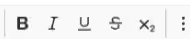 .
. - When you’ve finished your message, select Classification to classify what type of message it is.
- Finally, to send the email to your debtors, select Send.
You’ve now sent a statement to a debtor.
Was this article helpful?
That’s Great!
Thank you for your feedback
Sorry! We couldn't be helpful
Thank you for your feedback
Feedback sent
We appreciate your effort and will try to fix the article