TABLE OF CONTENTS
- Introduction
- Find a class
- Unenrol a student from the class
- Multiple Enrolments
- Remove a student from the class
Introduction
You can Unenrol a student from a class at any time. When you unenrol a student from a class in a timetable, Zunia records the student's unenrolment date and keeps the student on the list. This means that the student has left the class after the start date.
You can see a history of students previously enrolled in the class. You can also re-enrol the student again to the class later.
Note: If the class is in a published timetable, you need to republish the timetable to update the changes.
Find a class
To find a class:
- Go to Classes.
A list of your school's classes will display. - Select the class from which you want to Unenrol the students, and the student list will display.
Note: The list will be empty if there are no students enrolled.
Unenrol a student from the class
To Unenrol a student from the class:
- Select the Elipses next to a student and Edit.
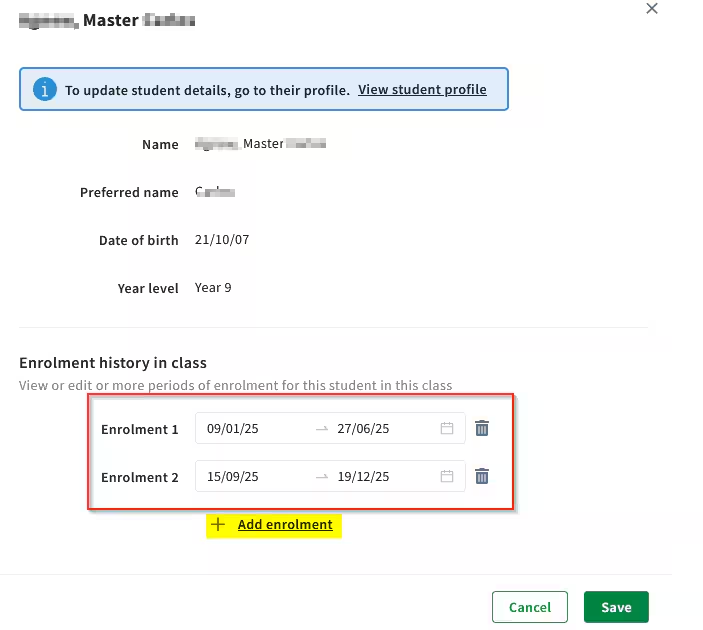
- In the Enrolment History in Class section enter an End Date next to the Enrolment 1 field.
- Select Save when you're done. This date will now be set as the students Unenrolment date
- Publish the timetable to make this effective in the current timetable.
You’ve now Unenrolled the student from the class.
To Re-enrol a student into a class
- Select the Elipses next to a student and Edit.
- In the Enrolment History in Class section the student should have a Start date and End Date next to the Enrolment 1 field. This is their first enrolment period
- Against the Enrolment 2 field enter a Start date.
- Select Save when you're done. This date will now be set as the students re-enrolment date
- Publish the timetable to make this effective in the current timetable.
You’ve now Re-enrolled the student into the class.
Multiple Enrolments
Students can be enrolled multiple times into a class throughout the year. This is to cater for students who leave the school or class and subsequently return
- Select the class to which you want to unenrol/enrol the student
- Against the student select the elipses and Edit
- Select + Add enrolment and enter a second enrolment period
- Select Save
- Publish the timetable
Note : It is not possible to unenrol and reenrol a student into a class within the same Term.
The workaround is to create one enrolment covering both enrolment periods and generate absences for the time the student is away.
Remove a student from the class
Note : Only remove a student from a class if they never attended that class else use Unenrol/Re-enrol a student
To remove a student from the class:
- Select the Elipses next to a student and Remove.
- Select Remove to confirm
- Publish the timetable to make this effective in the current timetable.
You’ve now removed the student from the class.
Was this article helpful?
That’s Great!
Thank you for your feedback
Sorry! We couldn't be helpful
Thank you for your feedback
Feedback sent
We appreciate your effort and will try to fix the article