TABLE OF CONTENTS
- Introduction
- 1. Enable timetable feature
- 2. Duplicate the Edval permissions group for the API key
- 3. Create API key for Zunia to Edval integration
- 4. Set up connection in Edval
Introduction
LISS is an interoperability standard designed for K-12 schools, to connect Timetable applications and other applications to Student Information Systems or School Admin Systems. Edval timetables is one application that can integrate with Zunia using the LISS standard.
To allow school staff to access Edval timetabling in Zunia, your System/IT Administrator needs to set up this integration and create/assign the correct group permissions.
Once schools have configured the Edval timetable integration they’ll be able to:
- Send teacher, student and room data information from Zunia to Edval.
- Push bell times, timetables, classes and class memberships from Edval into Zunia.
This guide describes how to configure the Edval timetable integration by completing all of the configuration steps below.
1. Enable timetable feature
To enable the timetable feature in Zunia, go to System configuration > Enable features:
b. Under Enable, slide the toggle right
 .
.You’ve enabled timetabling features for your school.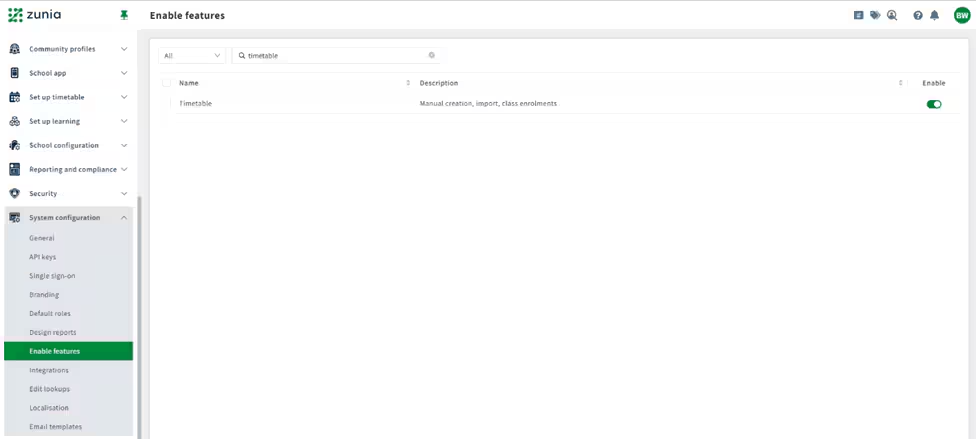
2. Duplicate the Edval permissions group for the API key
Next, you will copy a ‘managed group’ to allow your API key to have the correct permissions to manage the integration.
Go to Security > Groups.
b. Select the 3-dot icon … and select Duplicate.
c. Enter a name for the Group, for example ‘Edval API key’ and select Add.
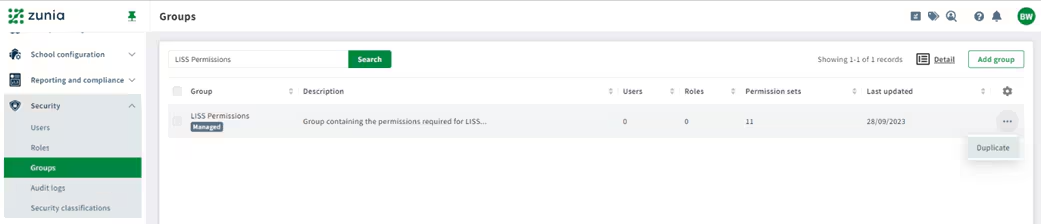
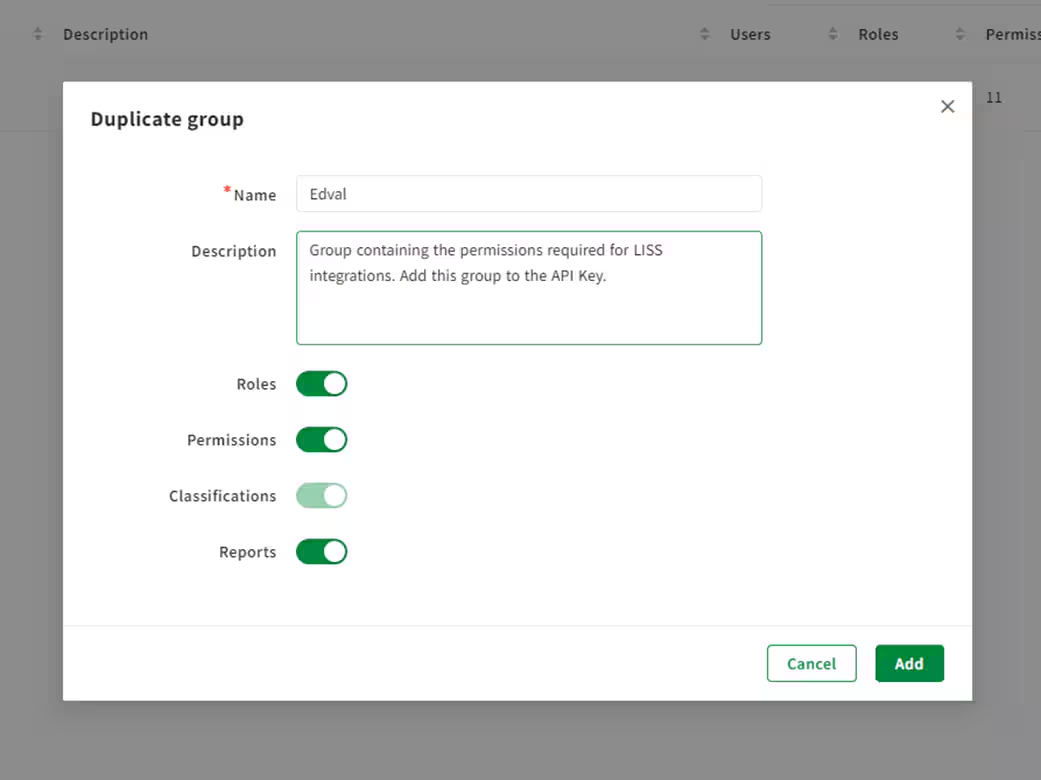
You’ve duplicated a managed group with the permissions for the Edval integration.
3. Create API key for Zunia to Edval integration
Next, you’ll need to create an API key for Edval to access your data.
Go to System configuration > API keys.
a. Select Generate key.
b. For Type, select Standard.
c. Enter a name for the API, for example ‘Edval API permissions group’.
d. ‘Advanced’ and Get, Post, Put, Patch and should be automatically selected.
e. Select Generate key and copy the secret client ID key for later.
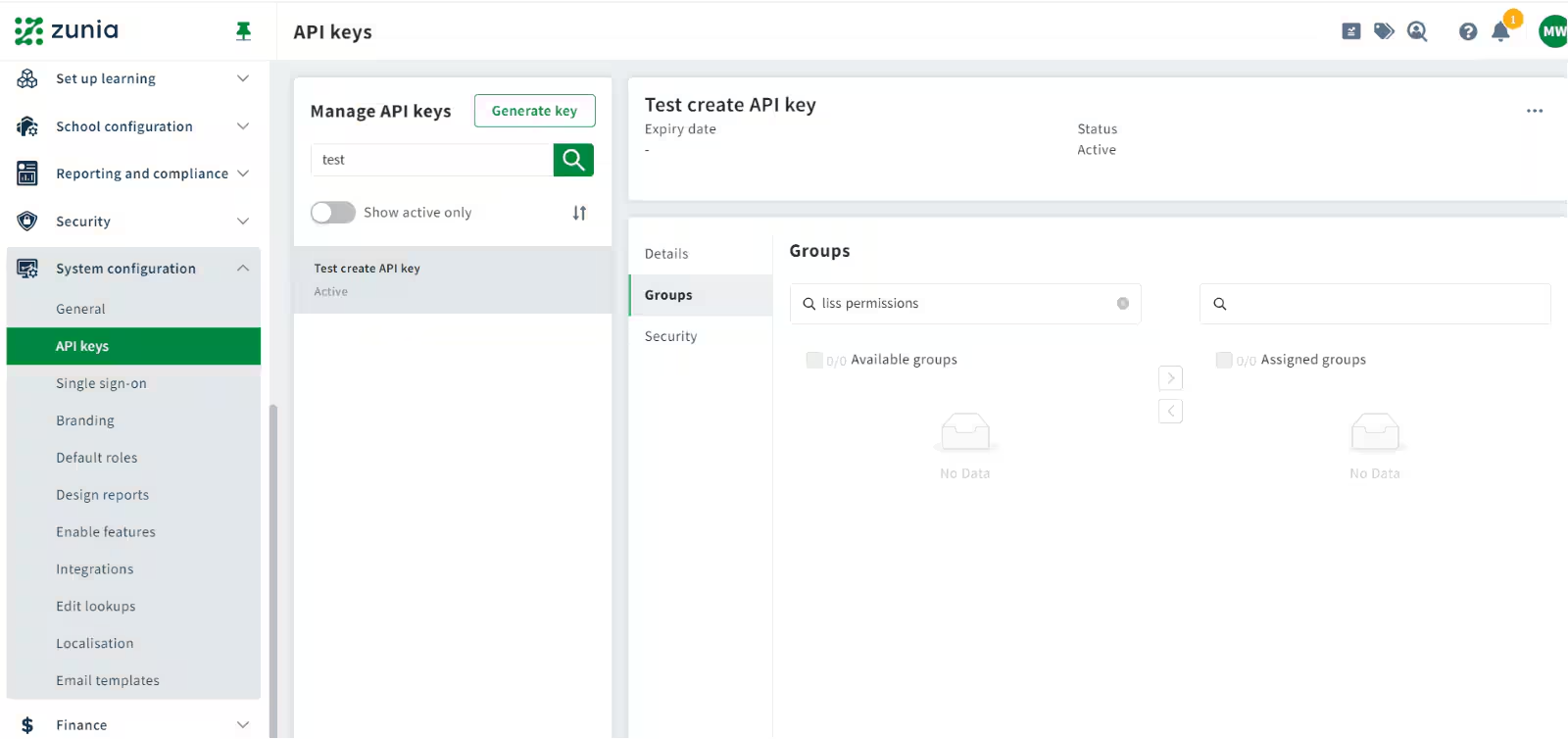
f. Under Manage API keys search for the 'API key name' created in step 3. Select Groups to view the list of groups you can give permission to access the key. ,
g. Type in 'LISS Permissions' to search for the group your created earlier, select it, then move it to the Assigned groups list using the right arrow button  .
.
4. Set up connection in Edval
Next, you’ll need to open your Edval software to test your connection.
To complete this process, use this information to test the API connection works:
- URL: https://public-api-ap-se-2.zunia.com/api/liss
- Client Id and Client Secret: as generated in your API key (from step 3).
Was this article helpful?
That’s Great!
Thank you for your feedback
Sorry! We couldn't be helpful
Thank you for your feedback
Feedback sent
We appreciate your effort and will try to fix the article