Introduction
After you've created a timetable cycle and applied it to an academic period, the next step is to add your teaching and non-teaching days and apply a fixed cycle or rolling cycle to the timetable.
Add teaching and non-teaching days
To add teaching and non-teaching days to a timetable, go to Set up timetable > Teaching and non-teaching days.
- Select the timetable you want to add teaching and non-teaching days to.
- Select the teaching days in Teaching days.
- Toggle Fixed cycle on or off.
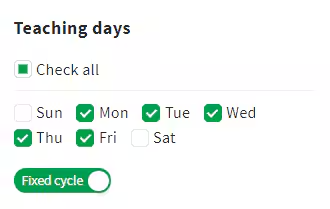
Fixed cycle toggled on: The timetable cycle lines up with the days of the week. For example, your school operates on a 5-day, Monday-to-Friday cycle.
Fixed cycle toggled off: The timetable cycle does not line up with the days of the week. For example, your school operates on a 7-day cycle where the first Monday of the term is day 1, and the next day 1 is the following Wednesday.
Next, add any non-teaching days, like public holidays.
- Go to Non-teaching days and select Add.
- Give the non-teaching day a Name, for example Labour Day.
- Select the date of the non-teaching day.
- Select Add.
- Select Save when you're done.
Note: Repeat these steps to add all your non-teaching days to the timetable.
Next, select the first day of the term or timetable period from the Calendar.
- Find the date of the first day of term in the calendar.
- Select the cycle day from the drop-down menu, and then select Fill.
- Select Save.
The teaching and non-teaching days have now been added to your timetable. Non-teaching days are shaded grey.
Was this article helpful?
That’s Great!
Thank you for your feedback
Sorry! We couldn't be helpful
Thank you for your feedback
Feedback sent
We appreciate your effort and will try to fix the article