TABLE OF CONTENTS
- Introduction
- Before you start
- Create a timetable cycle
- Import asc Timetables
- Add days and periods to a timetable
- Add exceptional days
Introduction
A timetable cycle is a pattern of days (for example Monday to Friday), with each day is broken up into periods.
A primary school might have a fixed 5-day, Monday-to-Friday cycle with just 2 periods each day (morning and afternoon, or AM and PM).
A secondary school might operate on a rolling cycle of days (for example, a 10-day cycle) with multiple periods each day.
The cycle you set up then repeats for the set duration of the timetable. You can add exceptions to your timetable cycle, for example non-teaching days.
Before creating your timetable, you need to know your school's timetable pattern and daily period and breaks schedule. You may already have naming conventions for cycles, days, classes and periods.
This guide will help you create a timetable cycle within Zunia or import a timetable cycle from asc Timetables.
Before you start
- Check Academic year and periods for your timetable have been set up.
- To check, go to School configuration > School structure
- You can Create your academic year if required.
Create a timetable cycle
To create a timetable cycle:
- Go to Set up timetable > Timetable cycle
- Select Add and Add new timetable.
- Select the Academic year and period, add a unique code and name for the timetable. For example, the name might be 2022 Semester 1 and the code is 2022S1.
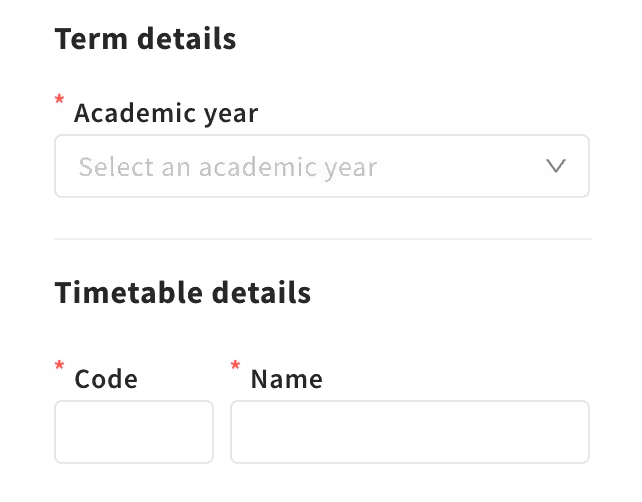
You've created a timetable cycle.
Import asc Timetables
To import an asc Timetables:
- Go to Set up timetables.
- Select Timetable cycle.
- Select Add > Import asc Timetable.
- Select the Academic year and period, add a unique Code and Name the timetable. For example, the name might be 2024 Semester 1, and the code 2024S1.
- Select Browse.
- Select the asc file you wish to import.
Note:
- You can only import one asc Timetables term per timetable.
- If you want to explore whether asc Timetables is right for your school, go to asctimetables.com
You've imported an asc Timetable cycle.
Note: You'll need to know your school's timetable pattern and daily period and breaks schedule. You may already have naming conventions for cycles, days, classes and periods.
Add days and periods to a timetable
When you've created a timetable cycle, it'll be made up of days and periods. Days will display as columns and periods as rows. A single day and period will display by default.
If you've imported an asc Timetable cycle, you'll see the cycle and periods are automatically populated with class information.
To add days and periods to a timetable cycle:
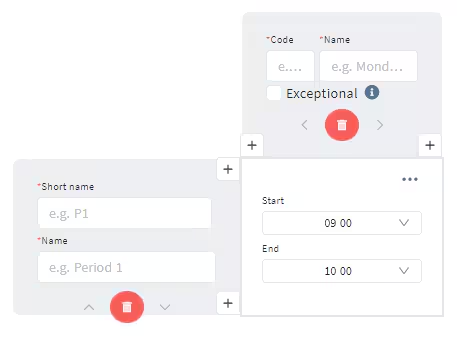
- Give the day a Code and Name. For example, the code might be MON and the Name Monday.
- Next, you need to give the period a Short name and Name. These names and codes are used as labels in other places in Zunia to identify days and periods.
- Set the Start and End time for the period.
- Continue adding periods using the + symbol, until you have a complete day set up. You can then copy this structure over to the next day using the + symbol. The period times you set in the first day carries across.
- Continue adding days until you build a complete timetable cycle.
- Select Save when you're done.
If you make a mistake, you can delete the period or day by selecting the red bin symbol. You can’t undo a deletion.
Note: You need to complete details for each day/period you add, before you can save.
Add exceptional days
Exceptional days are one-off, non-repeated days that form part of the timetable cycle throughout a term, often reserved for activities like school sports days.
You can add exceptional one-off days to a timetable cycle.
- Add a new day to the timetable cycle.
- Enter a Name and Code for the day.
- Select the Exceptional checkbox.
- Complete the period details. If it’s an all-day event, click the three dots and select Disable start/end time.
- Select Save.
Was this article helpful?
That’s Great!
Thank you for your feedback
Sorry! We couldn't be helpful
Thank you for your feedback
Feedback sent
We appreciate your effort and will try to fix the article